# QuickPricer

## Overview

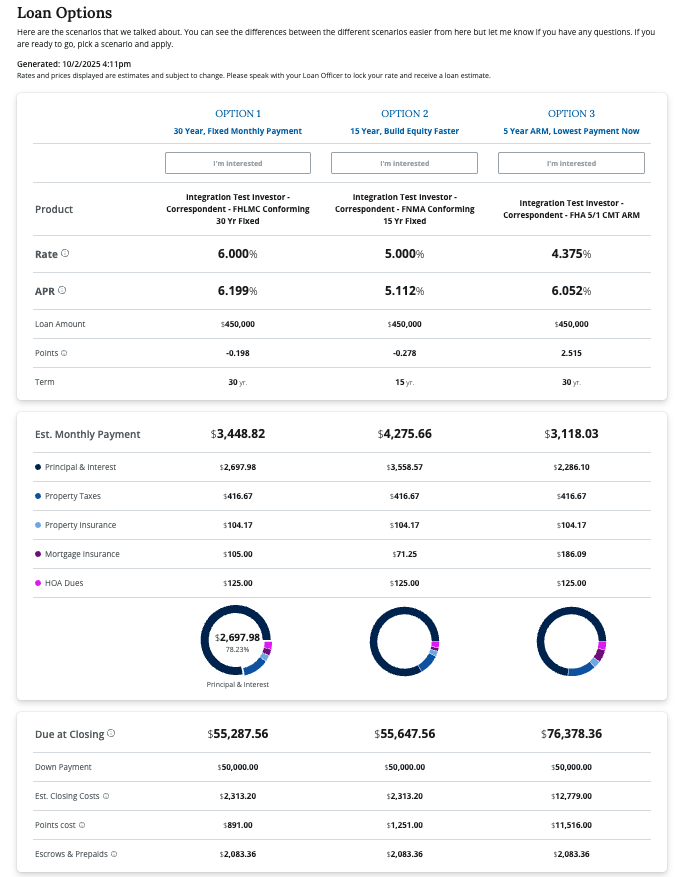
Maxwell QuickPricer helps lenders quickly shop, compare, and share product and pricing scenarios with their borrowers.

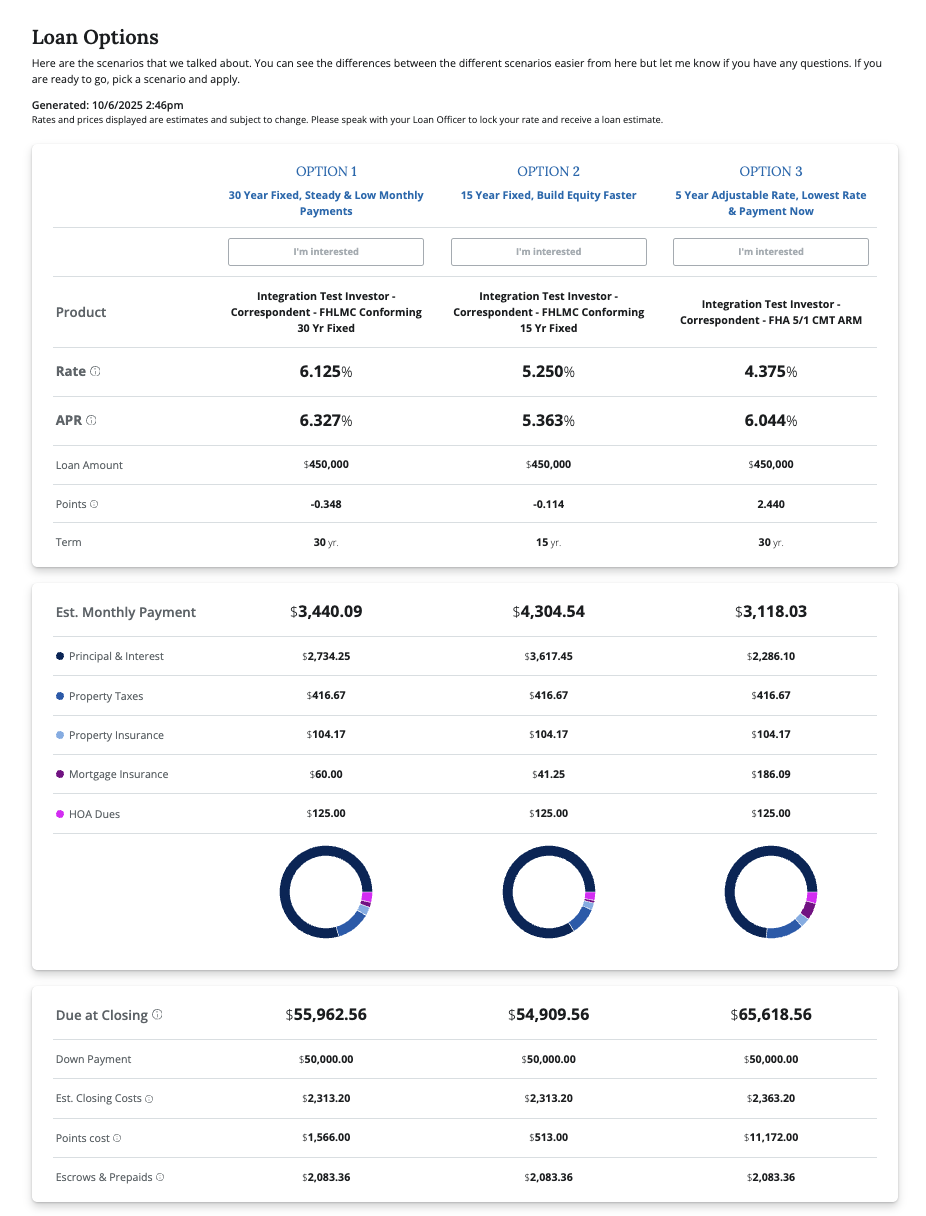
It’s an excellent educational tool for borrowers who are still deciding which loan option best fits their needs. With just a few clicks, an LO can select multiple scenarios and share an easy-to-read, side-by-side comparison that clearly outlines differences in rates, monthly payments, and closing costs.

The transparent, upfront cost breakdown builds trust with borrowers and helps your LOs win more deals by guiding borrowers from product selection to pre-qualification and into lock faster than ever before.

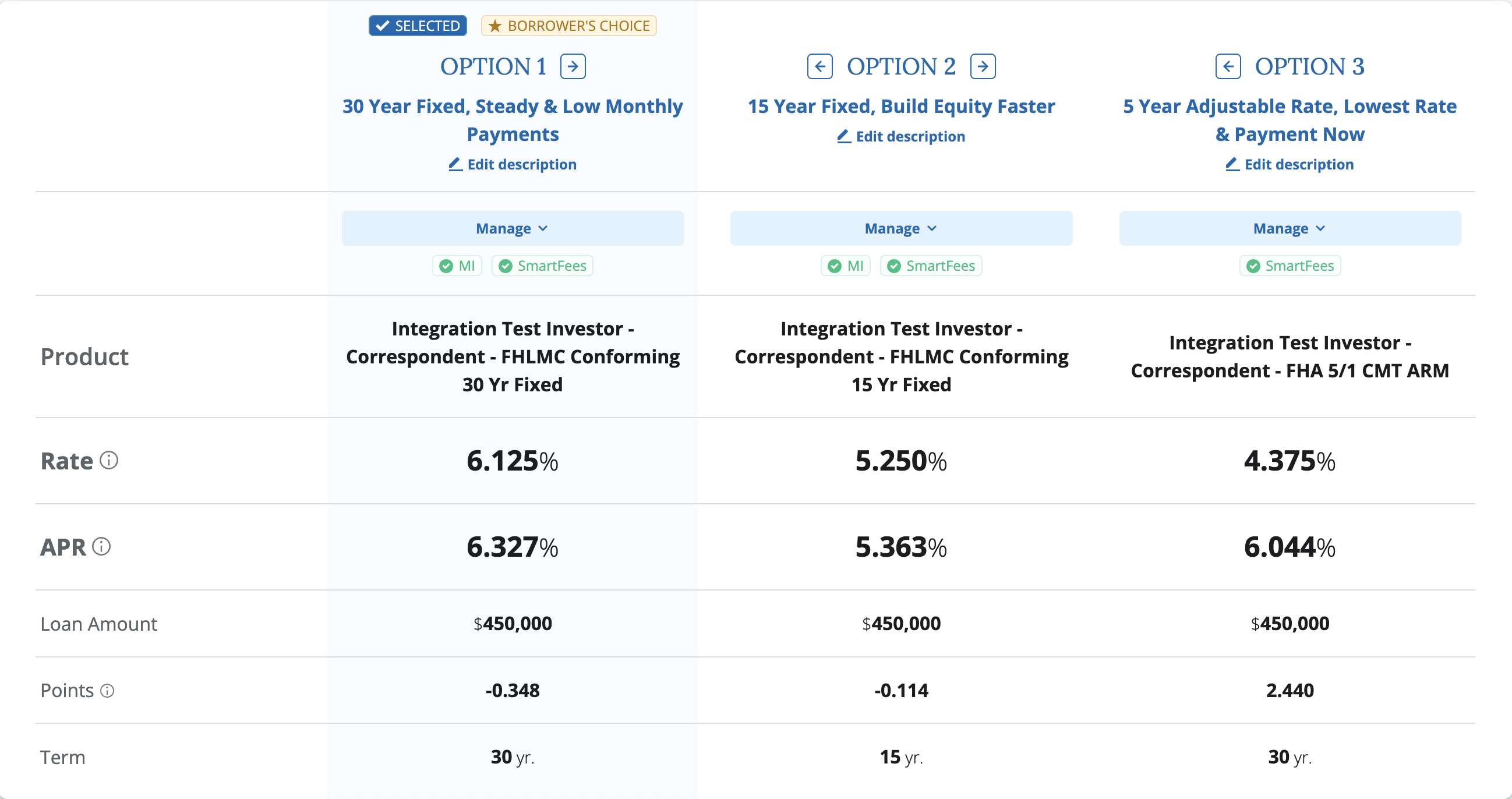
<figure><img src="https://2622734615-files.gitbook.io/~/files/v0/b/gitbook-x-prod.appspot.com/o/spaces%2F-MNeX8nmtEPnFygumL_k%2Fuploads%2Ft2TxQjNT6vwFmizzZVUT%2FScreenshot%202025-10-02%20at%204.12.33%E2%80%AFPM.png?alt=media&#x26;token=aa679440-487f-42b3-b4fc-0301108badfb" alt=""><figcaption><p>Maxwell's borrower friendly side by side comparison view helps you guide borrowers through key product decisions. </p></figcaption></figure>

**Typical Use Cases**

* **Single Product Breakdown:** Provides the borrower a clear view of the rate, monthly payment, and cash due at closing.&#x20;
* **Multiple Product Breakdowns:** Enables side-by-side comparisons of rates, monthly payments, and cash to close.
  * **Product Types:** Compare a 5% down conv. vs.  3% down FHA
  * **Loan Terms:** Explore different term lengths, like 15-year vs. 30-year loans.
  * **Interest Types:** Evaluate fixed-rate vs. ARM products, or compare different ARM schedules.
  * **Downpayment:** Compare scenarios such as 5%, 10%, and 20% down.
  * **Points Comparisons:** Contrast par pricing, buydowns, and other points scenarios.&#x20;

### Pricing Integrations&#x20;

QuickPricer integrates seamlessly with your existing pricing tech stack to ensure you can pull accurate pricing, fees, and insurance costs. This gives borrowers a clear, transparent view of their total product and payment details.

* **Product & Pricing Engines (P\&PE):**  ICE P\&PE (EPPS), Optimal Blue, PriceMyLoan, Polly&#x20;
* **Mortgage Insurance (MI) :** PP\&E Provided or Arch, Enact, Essent, MGIC, National, and Radian&#x20;
* **Fees:** PP\&E provided, or SmartFees
* **Taxes, Insurance, & Other Housing Expenses:** P\&PE provided or manual entry

### Data Collection&#x20;

#### With a Loan Application

Maxwell’s Point of Sale (POS) application collects all the essential information needed to qualify your borrower and begin their product search, including:

* Loan purpose
* Requested loan amount and down payment
* Property type and number of units
* Property use
* ZIP code and county

#### **Without a Loan Application**

You can use QuickPricer to run initial pricing searches without completing a full loan application. To get started:

1. From the **Pipeline Home** screen, start a **New Application**.
2. Enter the borrower’s email and basic contact information, then create the application file.
3. Navigate to the **QuickPricer** tab.
4. Enter the required loan information in the search prompts.
5. Continue with the steps outlined below.

#### Credit Pull Integrations

For the most accurate pricing results, Maxwell recommends integrating with our [Credit Pull service](https://docs.himaxwell.com/~/changes/665/platform-overview/admins-and-tech-support/integrations/credit-providers). This allows you to either:

* Automatically run a credit pull upon application submission, or
* Have the loan officer manually pull credit from the **Services** tab before starting a pricing search

## Search Products Tab

**QuickPricer** starts with a pricing search that connects your borrower’s loan application data to your Product & Pricing Engine (P\&PE). Any loan information entered in the application is automatically pre-filled in the pricing search.

After you or the borrower complete the key loan details required for pricing, you can submit the form to retrieve all valid pricing results directly from your P\&PE.

<figure><img src="https://2622734615-files.gitbook.io/~/files/v0/b/gitbook-x-prod.appspot.com/o/spaces%2F-MNeX8nmtEPnFygumL_k%2Fuploads%2F5NkzSwsZxcYOQP66hLtf%2FScreenshot%202025-10-02%20at%204.38.29%E2%80%AFPM.png?alt=media&#x26;token=fa27c28c-a532-4853-8ea2-9e51d29f9aa0" alt=""><figcaption><p>QuickPricer's Product search connects your borrowers loan app data to your P&#x26;PE </p></figcaption></figure>

You can also use **click on the column headers to sort** by product name, rate, APR, monthly payment, points, etc.&#x20;

<figure><img src="https://2622734615-files.gitbook.io/~/files/v0/b/gitbook-x-prod.appspot.com/o/spaces%2F-MNeX8nmtEPnFygumL_k%2Fuploads%2FGhiAaTEXXW4RYSovhJvV%2FScreenshot%202025-10-02%20at%204.43.34%E2%80%AFPM.png?alt=media&#x26;token=66eb1a20-bda6-47e8-9c1b-d077256c1150" alt=""><figcaption><p>Search will return all results that match your search criteria and filters from your P&#x26;PE. </p></figcaption></figure>

<figure><img src="https://2622734615-files.gitbook.io/~/files/v0/b/gitbook-x-prod.appspot.com/o/spaces%2F-MNeX8nmtEPnFygumL_k%2Fuploads%2FVd0fdGQmSvpx2db2lBZH%2FScreenshot%202025-10-02%20at%204.47.57%E2%80%AFPM.png?alt=media&#x26;token=2f4af4bb-8d0b-463f-b931-e614c5723a85" alt=""><figcaption><p>Expand any products to view and select the desired points/rate. </p></figcaption></figure>

<figure><img src="https://2622734615-files.gitbook.io/~/files/v0/b/gitbook-x-prod.appspot.com/o/spaces%2F-MNeX8nmtEPnFygumL_k%2Fuploads%2FxQvasfPh0HH1wtZwBQ1e%2FScreenshot%202025-10-02%20at%204.51.34%E2%80%AFPM.png?alt=media&#x26;token=b2fa3517-5491-4a50-82f3-bbde8657f45c" alt=""><figcaption><p>Your selections will be stored at the top of your page in the Loan Scenarios table. </p></figcaption></figure>

The selected products include default **PITI**, **APR**, and **estimated closing costs** from your Product & Pricing Engine (P\&PE). The more accurate your data is in the pricing engine, the more precise your loan scenarios will be.

After selecting the products you’d like to compare, click **Next: Loan Scenarios** to move to the side-by-side comparison screen, where you can begin refining your product details.

## Loan Scenarios Tab

The **Loan Scenarios** page provides a side-by-side breakdown of the selected products. This view allows you to make final edits and prepare the scenarios for sharing with your borrower.

From this view, you can:

* [Add Titles & Messages](#add-titles-and-messages)
* [Arrange the Sequence of the Options ](#arrange-sequence-of-the-options)
* [Manage Product Dropdown Menu ](#manage-product-dropdown)
* [Get Mortgage Insurance Quotes ](#get-mortgage-insurance)(when integrated) &#x20;
* [Get Fees](#fees-estimated-closing-costs) (when integrated)&#x20;
* [Product Details](#product-details)
* [Preview ](#preview)
* [Send to Borrower](#send-to-borrower)
* [Borrower Experience](#borrower-experience)
* [Select Product ](#select-product)
* [Lock Rate](#rate-lock)

### **Add Titles & Messages**&#x20;

To help educate your borrower, you can add descriptive titles to each selected product. You can also include an introductory message that will appear at the top of the borrower Loan Scenarios view.&#x20;

<figure><img src="https://2622734615-files.gitbook.io/~/files/v0/b/gitbook-x-prod.appspot.com/o/spaces%2F-MNeX8nmtEPnFygumL_k%2Fuploads%2Fh7SYDrFA5VwVkdr7Vb6d%2FScreenshot%202025-10-03%20at%209.34.42%E2%80%AFAM.png?alt=media&#x26;token=93c0589c-3280-429c-a295-6edfa1305d15" alt=""><figcaption><p>Add descriptive titles to help your borrower understand the different option in their terms. </p></figcaption></figure>

<figure><img src="https://2622734615-files.gitbook.io/~/files/v0/b/gitbook-x-prod.appspot.com/o/spaces%2F-MNeX8nmtEPnFygumL_k%2Fuploads%2FpA5sNO8k4xWyDFOerWiX%2FScreenshot%202025-10-03%20at%209.34.06%E2%80%AFAM.png?alt=media&#x26;token=7b6438fa-b008-442d-bda7-7d4faff62e66" alt=""><figcaption><p>Edit the message that will be shared with the borrower in the email notification, and on the top of the scenarios page. </p></figcaption></figure>

### **Arrange Sequence of the Options**&#x20;

You can use the arrow buttons new to the title to re-order the sequence to display the options. In this example if you want to lead with a 30 year fixed as option 1 because that's your recommendation you can do that.&#x20;

<figure><img src="https://2622734615-files.gitbook.io/~/files/v0/b/gitbook-x-prod.appspot.com/o/spaces%2F-MNeX8nmtEPnFygumL_k%2Fuploads%2F10li93JMB333pMqsScRL%2FScreenshot%202025-10-03%20at%209.39.07%E2%80%AFAM.png?alt=media&#x26;token=0d1d63da-fac3-4090-a031-b7dfc43e2cad" alt=""><figcaption></figcaption></figure>

### Manage Product Dropdown

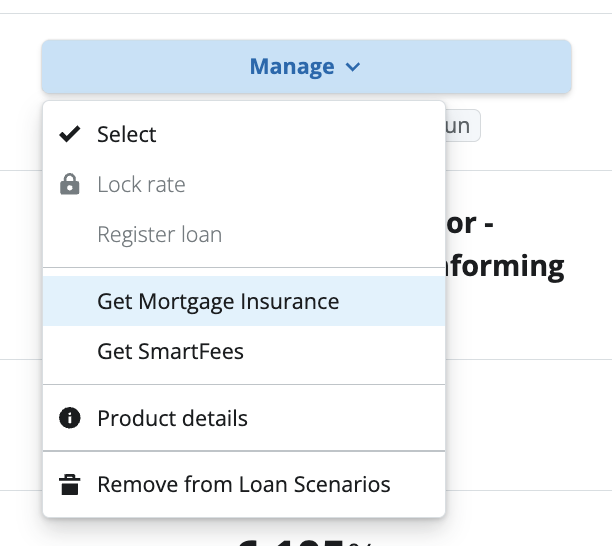
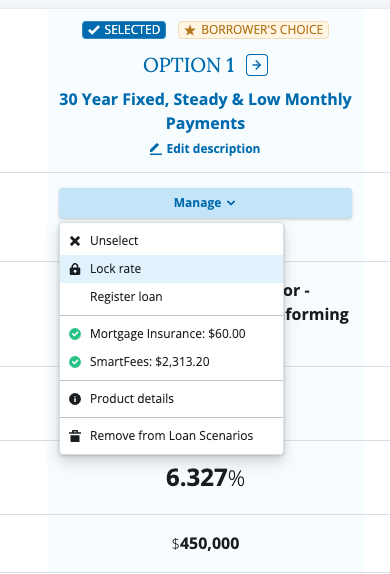
The **Manage Product** dropdown allows you to edit product details and make final preparations before sharing with the borrower. This menu conveniently lets you manage all loan scenario details from a single place.

<figure><img src="https://2622734615-files.gitbook.io/~/files/v0/b/gitbook-x-prod.appspot.com/o/spaces%2F-MNeX8nmtEPnFygumL_k%2Fuploads%2FlcaWqG4AFO9532NGo3A5%2FScreenshot%202025-10-03%20at%209.42.42%E2%80%AFAM.png?alt=media&#x26;token=1e18b46a-1ec4-40a2-9e96-cd54e1c9c682" alt="" width="459"><figcaption><p>The Manage dropdown contains all your product editing &#x26; selection options. </p></figcaption></figure>

### Get Mortgage Insurance&#x20;

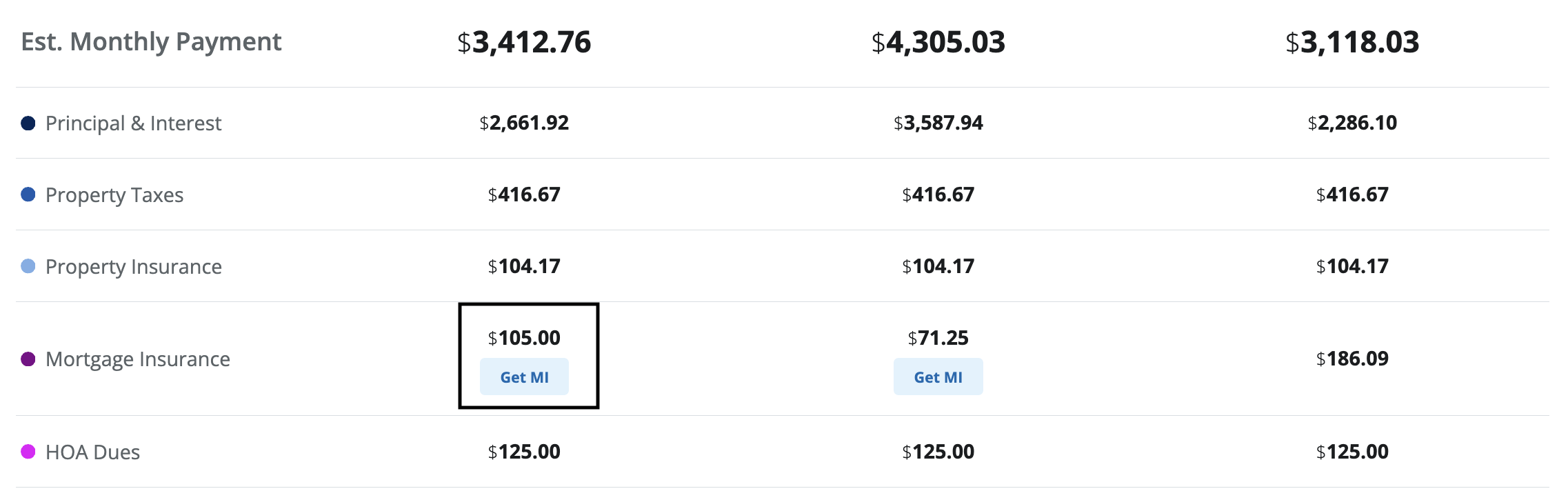
Most Product & Pricing Engines (P\&PEs) provide a blended rate for Private Mortgage Insurance (PMI) when it’s required for a product. When available, Maxwell automatically pulls that blended quote and displays it on the product as the default rate.

<figure><img src="https://2622734615-files.gitbook.io/~/files/v0/b/gitbook-x-prod.appspot.com/o/spaces%2F-MNeX8nmtEPnFygumL_k%2Fuploads%2F2wE1pFQYRBiLMV3qD9C6%2FScreenshot%202025-10-03%20at%209.49.04%E2%80%AFAM.png?alt=media&#x26;token=f217a6f6-4002-424f-9a6c-42bf0ea22992" alt=""><figcaption><p>Maxwell pulls the MI quote from the P&#x26;PE when available and sets that as the default rate. </p></figcaption></figure>
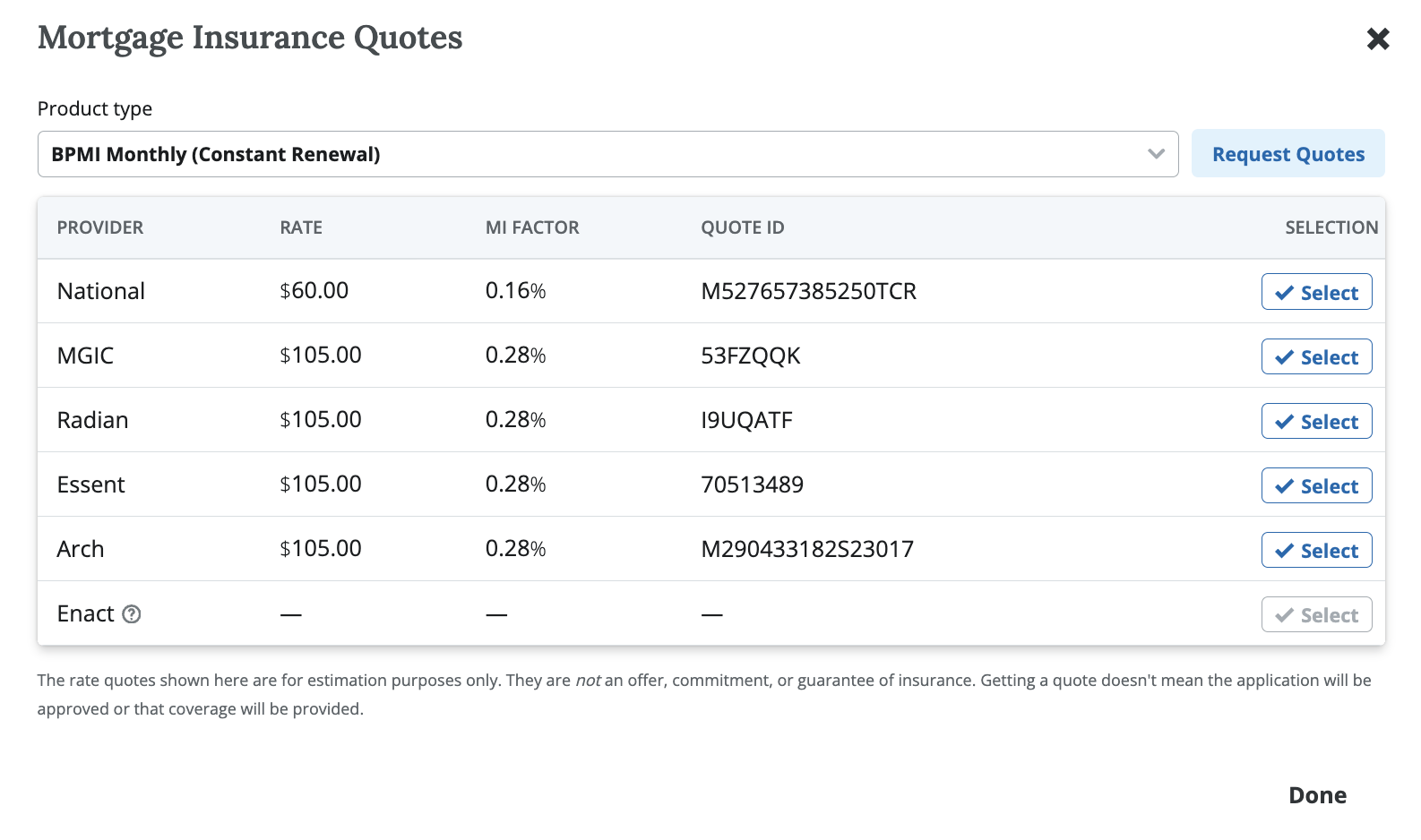
**Maxwell’s Mortgage Insurance Rate Quote Tool** allows lenders to generate more accurate MI quotes early in the process—helping you stand out from competitors and provide transparent, precise pricing to your borrowers.

**To request MI quotes:**

1. Click **Get MI**.
2. Select the desired product type from the dropdown.
3. Click **Request Quotes**.
4. Maxwell will send the request to your integrated MI providers.
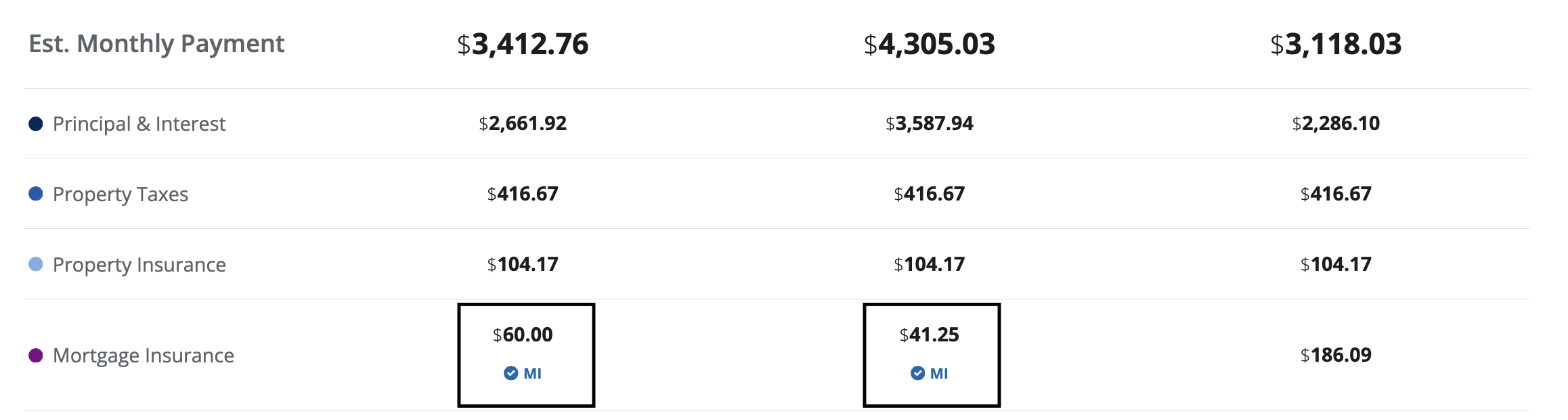
5. After a few seconds, available MI quotes will be returned.
6. Shop, compare, and select the best rate for your borrower.

<figure><img src="https://2622734615-files.gitbook.io/~/files/v0/b/gitbook-x-prod.appspot.com/o/spaces%2F-MNeX8nmtEPnFygumL_k%2Fuploads%2FlG624jZF41YnVE28RPWc%2FScreenshot%202025-10-03%20at%209.57.44%E2%80%AFAM.png?alt=media&#x26;token=e9ef3732-df8c-48ee-8b41-862ac1dc44f1" alt="" width="563"><figcaption><p>Shop and compare rates from your MI providers from QuickPricer</p></figcaption></figure>

<figure><img src="https://2622734615-files.gitbook.io/~/files/v0/b/gitbook-x-prod.appspot.com/o/spaces%2F-MNeX8nmtEPnFygumL_k%2Fuploads%2FUWzxE5uScUYesizT43TT%2FScreenshot%202025-10-03%20at%2010.00.12%E2%80%AFAM.png?alt=media&#x26;token=d6a6b7b8-eee3-4ce9-b0b8-e8ca2d0fbf9a" alt=""><figcaption><p>Selected rate will appear with the MI checkmark. Click the checkmark to shop rates again. </p></figcaption></figure>
#### Set up your Mortgage Insurance Integration & Learn More

Click here to learn about [**Mortgage Insurance integration**](https://docs.himaxwell.com/~/changes/665/platform-overview/admins-and-tech-support/integrations/private-mortgage-insurance) and for steps to enable the integration for your organization.&#x20;

### Fees (Estimated Closing Costs)

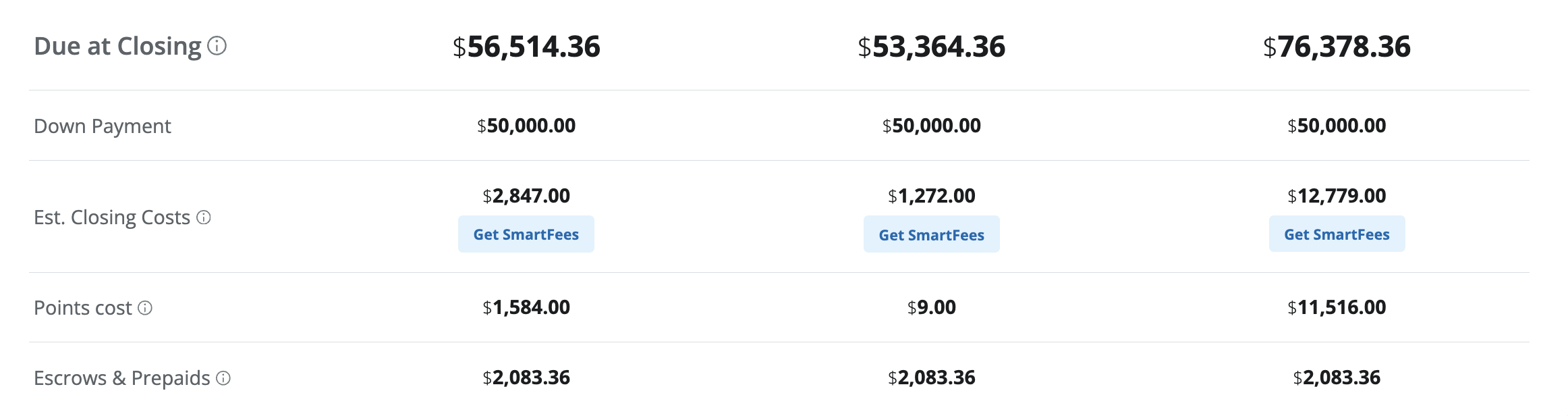
Similar to Mortgage Insurance, many Product & Pricing Engines (P\&PEs) allow lenders to configure standard fee calculations. When that data is available, Maxwell automatically pulls the itemized fees and includes their total in the **estimated closing costs**.

For customers integrated with a fees engine, such as **SmartFees**, there’s also an option to pull fees directly from your Fees Engine—providing even more accurate, upfront quotes for your borrowers.

<figure><img src="https://2622734615-files.gitbook.io/~/files/v0/b/gitbook-x-prod.appspot.com/o/spaces%2F-MNeX8nmtEPnFygumL_k%2Fuploads%2FHdZhfx6HOHsDDSHT7BJ7%2FScreenshot%202025-10-03%20at%2010.10.57%E2%80%AFAM.png?alt=media&#x26;token=0ab9ff5d-7949-4821-9935-ed5c3ed64bf0" alt=""><figcaption><p>Maxwell initially pulls a sum of estimated closing costs &#x26; fees from your P&#x26;PE and sums up the total for the borrower. </p></figcaption></figure>
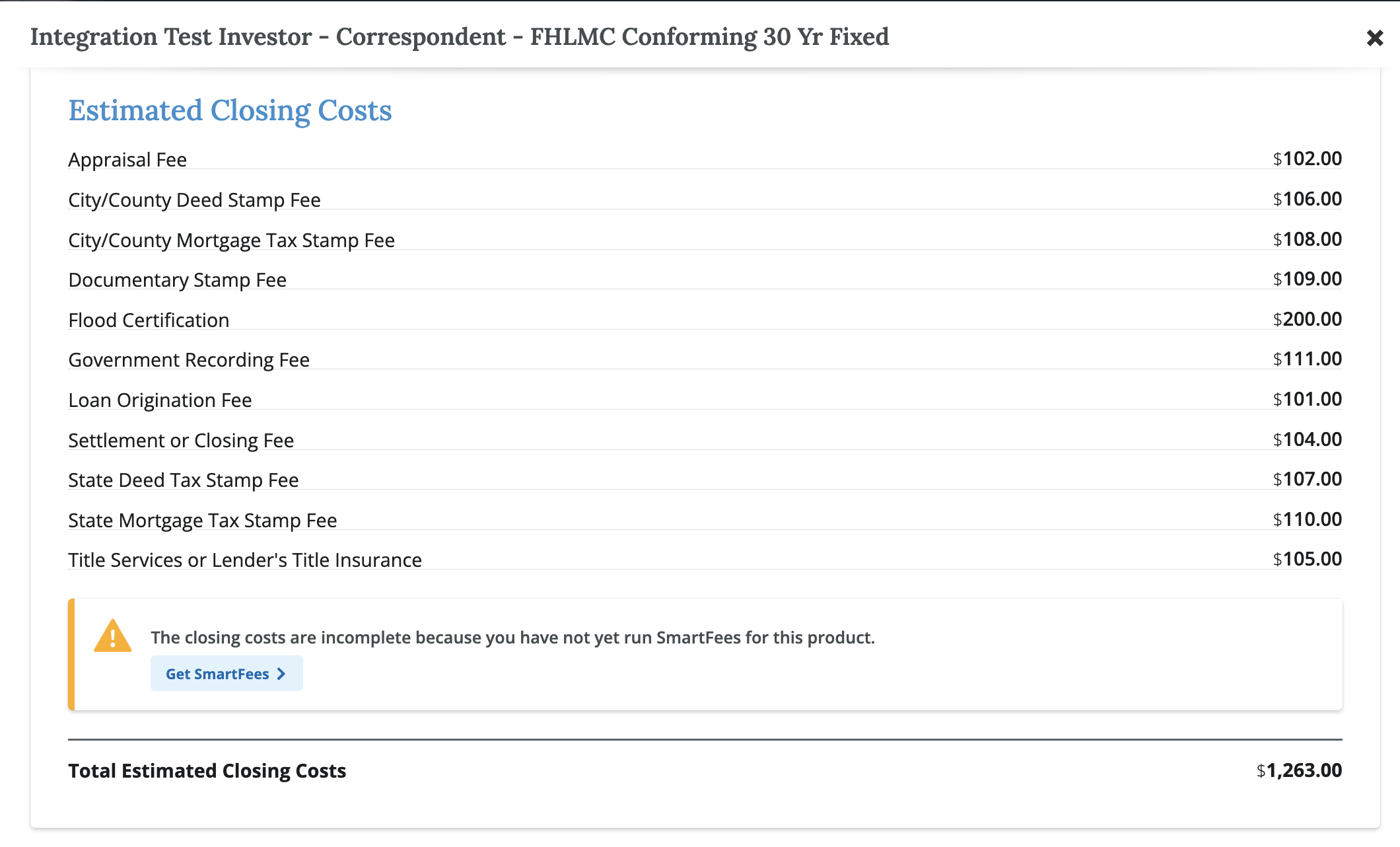
#### Itemized Fees&#x20;

<figure><img src="https://2622734615-files.gitbook.io/~/files/v0/b/gitbook-x-prod.appspot.com/o/spaces%2F-MNeX8nmtEPnFygumL_k%2Fuploads%2F9aURd264FKKtzvn0DAki%2FScreenshot%202025-10-06%20at%202.11.47%E2%80%AFPM.png?alt=media&#x26;token=59d3a538-e954-44a7-9f79-9b9a94980862" alt=""><figcaption><p>Maxwell will return itemized fees from the P&#x26;PE when available. For more detailed fees you can pull from a Fees engine like SmartFees. </p></figcaption></figure>
#### Get SmartFees&#x20;

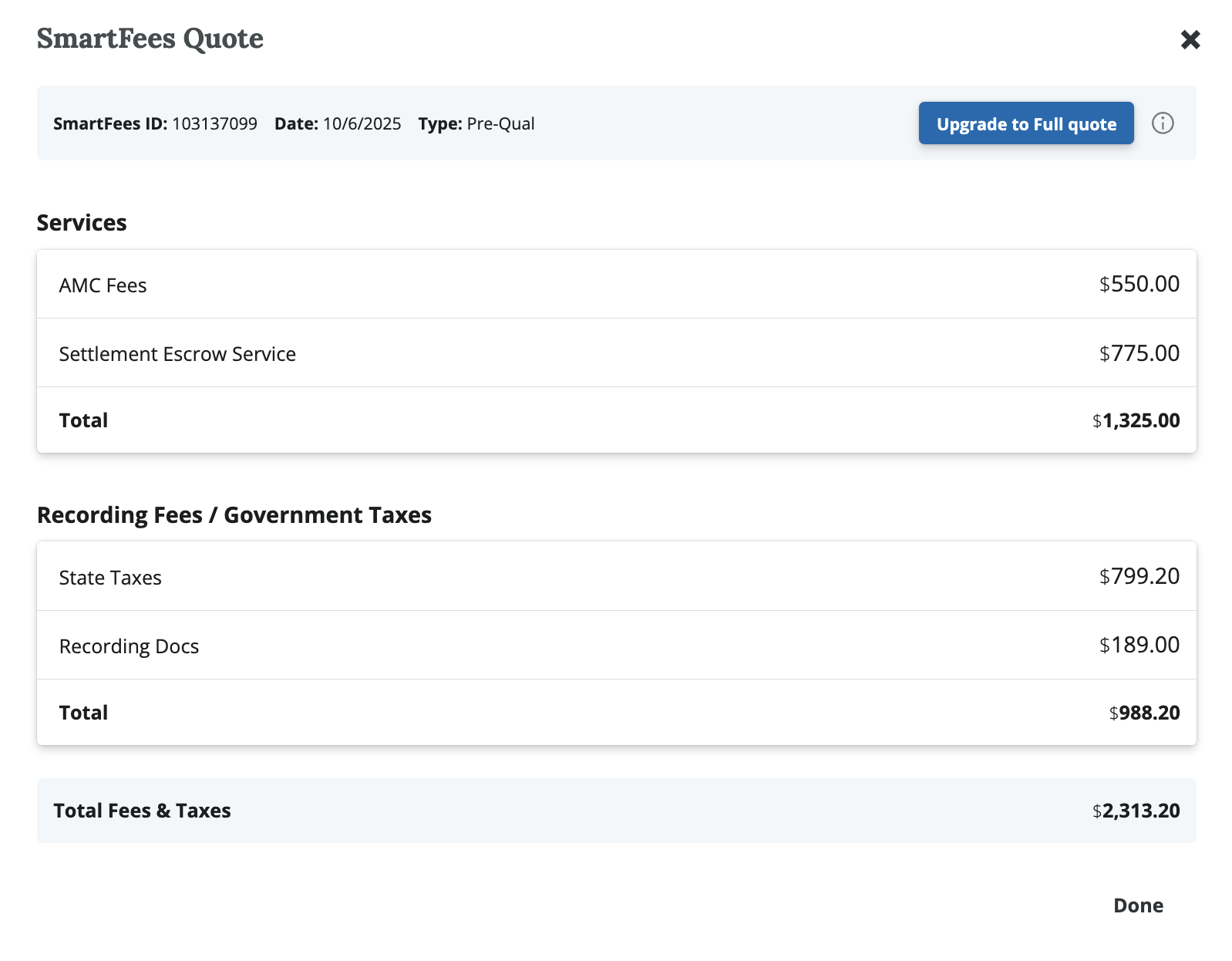
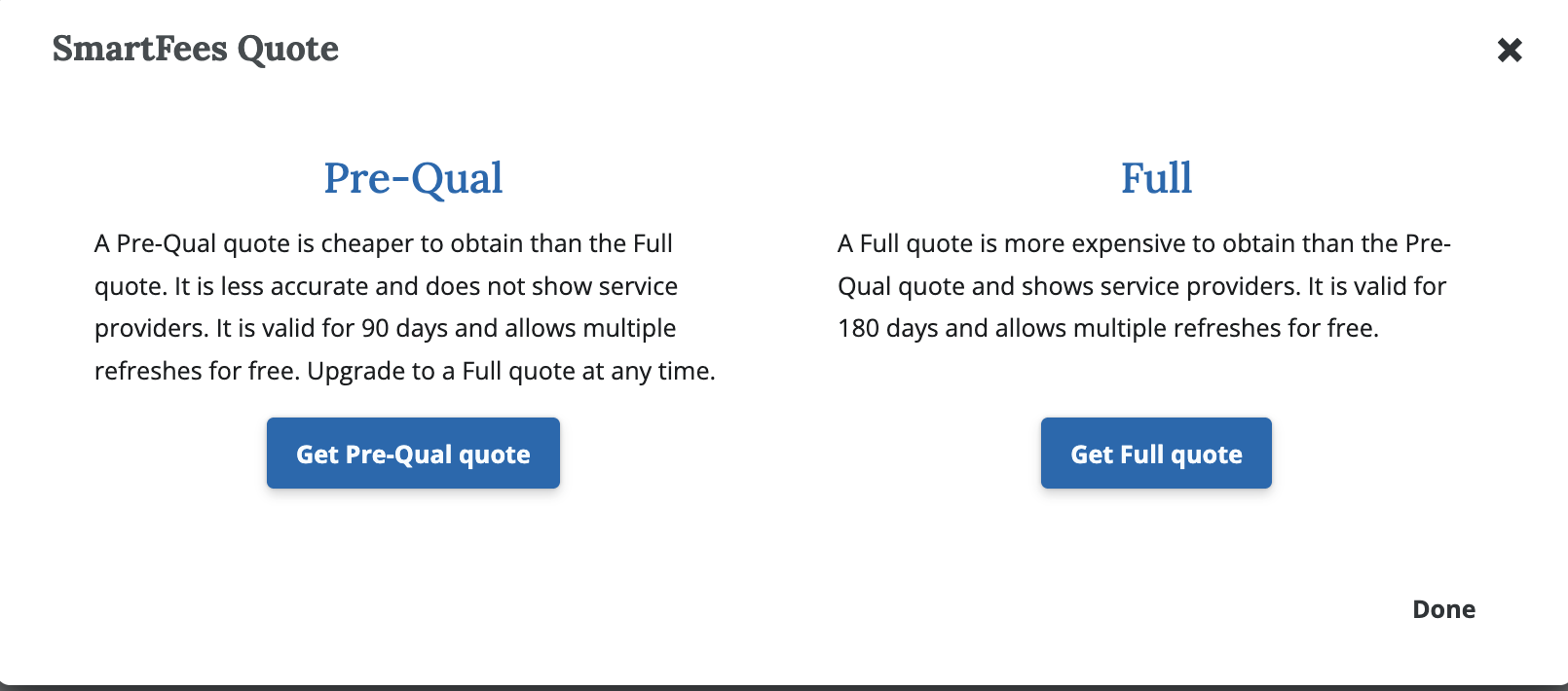
For organizations that use **SmartFees**, Maxwell offers an integration that allows you to pull fees directly from SmartFees for a specific loan scenario. When requesting SmartFees, you’ll be presented with two options:

**1. Pre-Qual Quote**

A pre-qual quote provides an initial fee estimate at a fraction of the cost of a full quote. It includes itemized costs but excludes detailed service provider information. Use this option when you want to give borrowers a quick view of their total expenses without needing all the details required for a Loan Estimate.

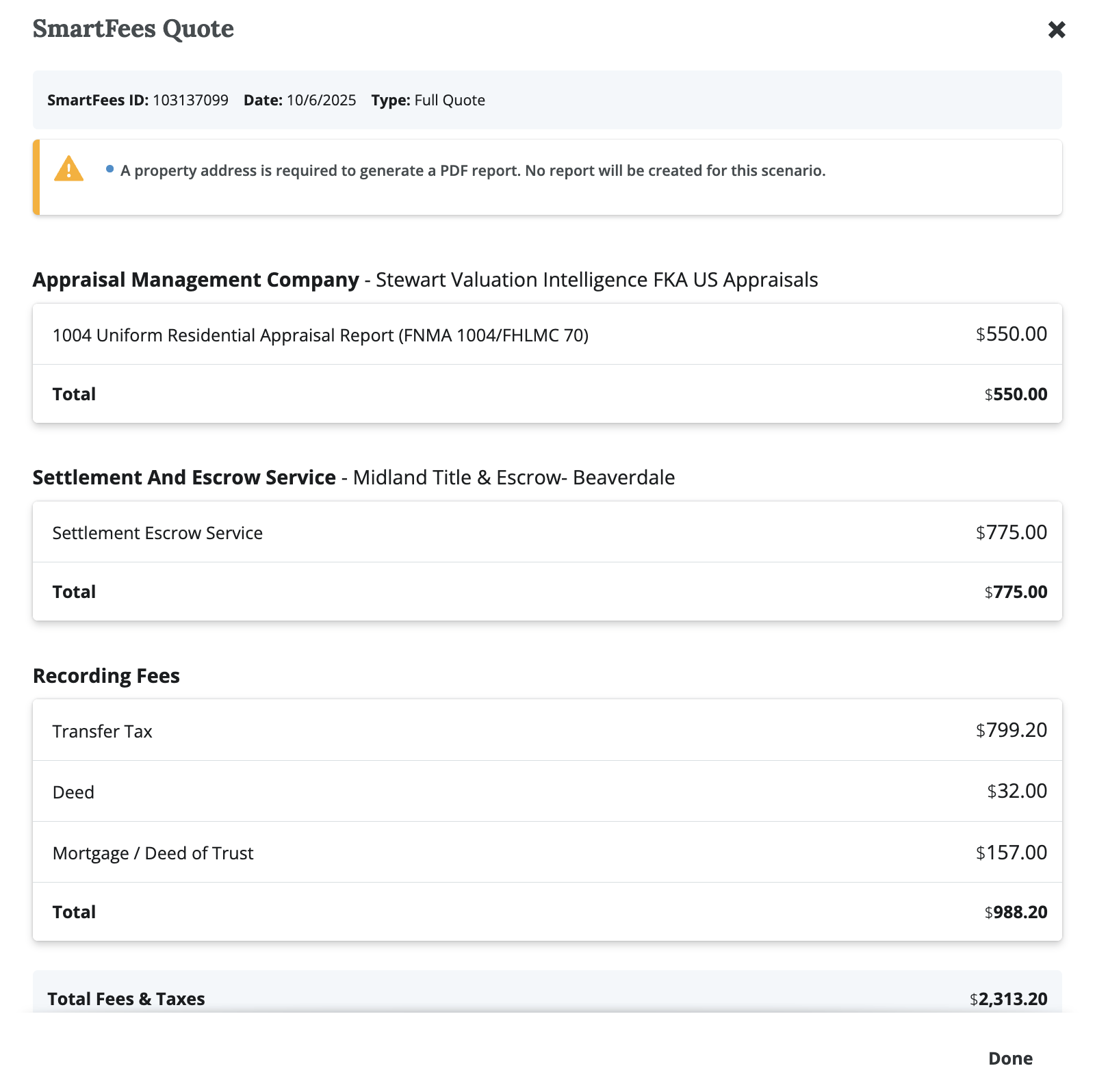
**2. Full Quote**

A full quote is used when you’re ready to proceed with a specific product and need all fees and service provider details required for the official **Loan Estimate** and **Underwriting**.

<figure><img src="https://2622734615-files.gitbook.io/~/files/v0/b/gitbook-x-prod.appspot.com/o/spaces%2F-MNeX8nmtEPnFygumL_k%2Fuploads%2FtwrVu2l7NRJForFtxfkY%2FScreenshot%202025-10-06%20at%202.24.12%E2%80%AFPM.png?alt=media&#x26;token=ea4a9c07-9d4f-4330-af1e-649bc1530965" alt=""><figcaption></figcaption></figure>

<figure><img src="https://2622734615-files.gitbook.io/~/files/v0/b/gitbook-x-prod.appspot.com/o/spaces%2F-MNeX8nmtEPnFygumL_k%2Fuploads%2F3uj1YvXAvTgBQg4IPLSr%2FScreenshot%202025-10-06%20at%202.23.42%E2%80%AFPM.png?alt=media&#x26;token=2e35feb6-479c-4915-bd44-22050c195c03" alt=""><figcaption><p>A Pre-Qual Quote contains a default list of itemized fees for a snapshot of est. closing costs. Refresh for up to 90 days. </p></figcaption></figure>
#### Full Quote&#x20;

<figure><img src="https://2622734615-files.gitbook.io/~/files/v0/b/gitbook-x-prod.appspot.com/o/spaces%2F-MNeX8nmtEPnFygumL_k%2Fuploads%2FyUdqaFf9R4AfW6kBUFLg%2FScreenshot%202025-10-06%20at%202.37.17%E2%80%AFPM.png?alt=media&#x26;token=d7386d52-aa39-4834-a464-3943b0a55676" alt=""><figcaption><p>Full quotes contain the details of the service providers as well as the full PDF report required for underwriting. </p></figcaption></figure>
## Housing Expenses&#x20;

Maxwell offers two methods for adding estimated housing expenses to a file during early-stage pricing:

* **Pull programmatic data from the (P\&PE)** (when available).
* **Manually enter** estimated housing expenses.

### Pulling Housing Expenses from a P\&PE

Some pricing engines allow lenders to configure standard taxes, insurance, and other housing expense data directly within the engine. When this data exists, Maxwell performs the following steps after the LO selects a product:

1. The LO selects a loan product from the **POS.**
2. Maxwell pulls any available estimated housing expense data from the P\&PE for that product.
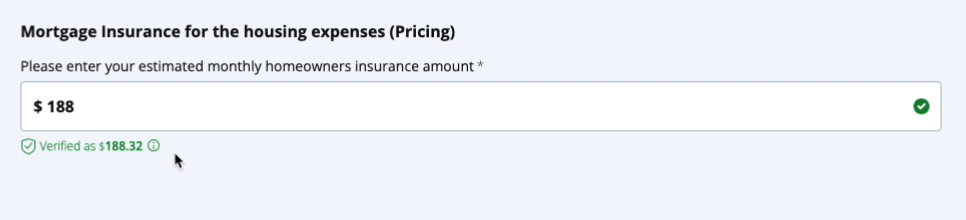
3. Maxwell updates the corresponding application fields and displays a **Verified Data** badge next to each populated field.

If the LO needs to update a verified data field, they can manually edit the form field. Maxwell will retain the original verified data amount for reference.

<figure><img src="https://2622734615-files.gitbook.io/~/files/v0/b/gitbook-x-prod.appspot.com/o/spaces%2F-MNeX8nmtEPnFygumL_k%2Fuploads%2FuDR5ObdnF6IYIqVRZZLf%2FScreenshot%202025-10-02%20at%2010.32.02%E2%80%AFAM.png?alt=media&#x26;token=ad0429ca-a864-4ca9-95ba-52d7138bee69" alt=""><figcaption><p>We will show any housing expenses data coming from the pricing engine as a "verified" data source. </p></figcaption></figure>
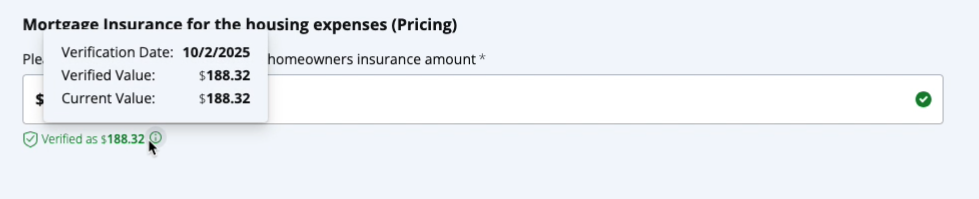
<figure><img src="https://2622734615-files.gitbook.io/~/files/v0/b/gitbook-x-prod.appspot.com/o/spaces%2F-MNeX8nmtEPnFygumL_k%2Fuploads%2Fgfbv6MEAnNRxkohnsXRQ%2FScreenshot%202025-10-02%20at%2010.32.11%E2%80%AFAM.png?alt=media&#x26;token=f70688a7-8699-48a8-9c19-3ee8b1436fec" alt=""><figcaption><p>Hover over the verified data source to see where it originated, the value, and if you have changed the current value from the original amount. </p></figcaption></figure>
### Manually Entering Housing Expenses

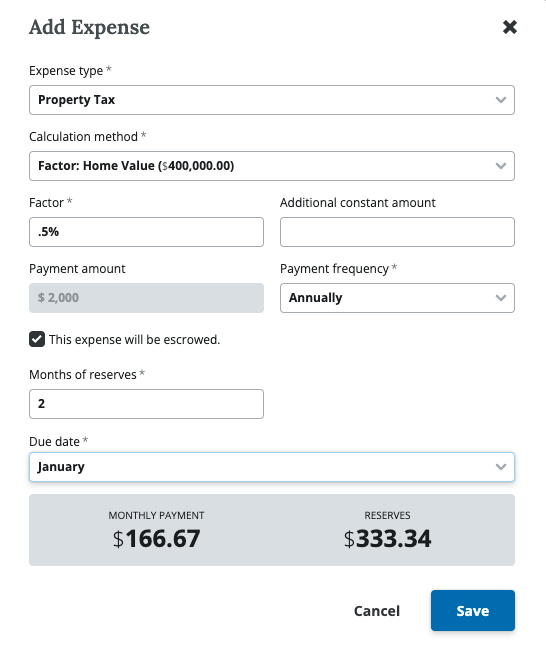
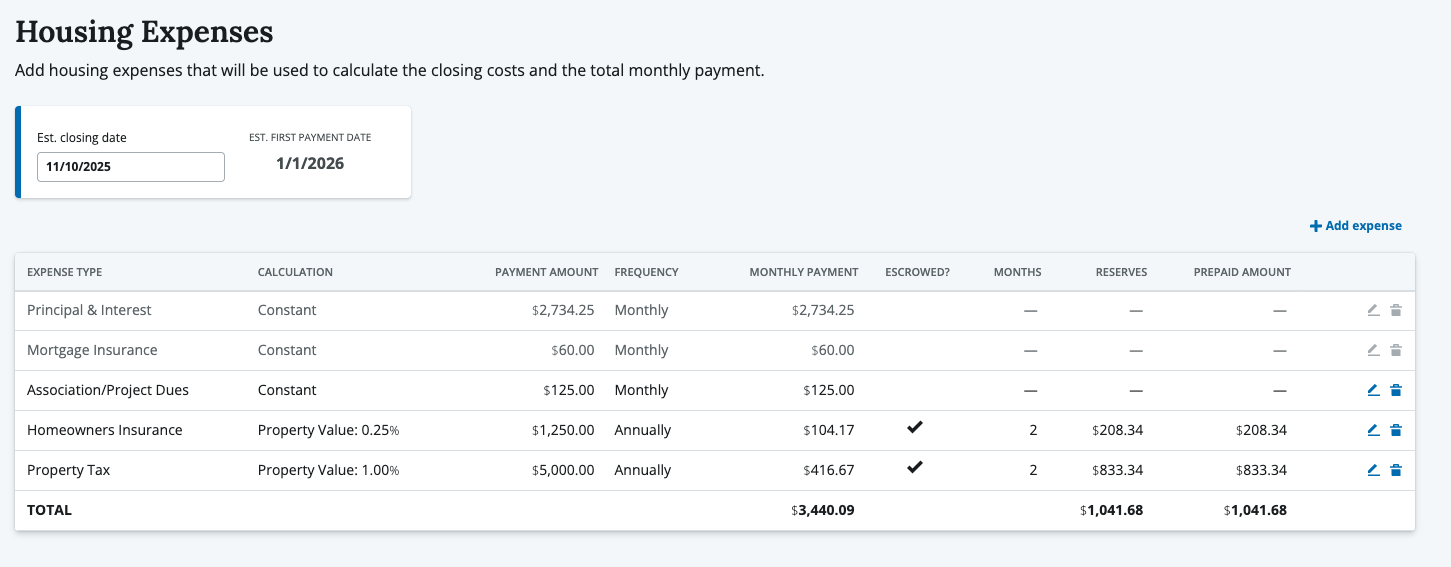
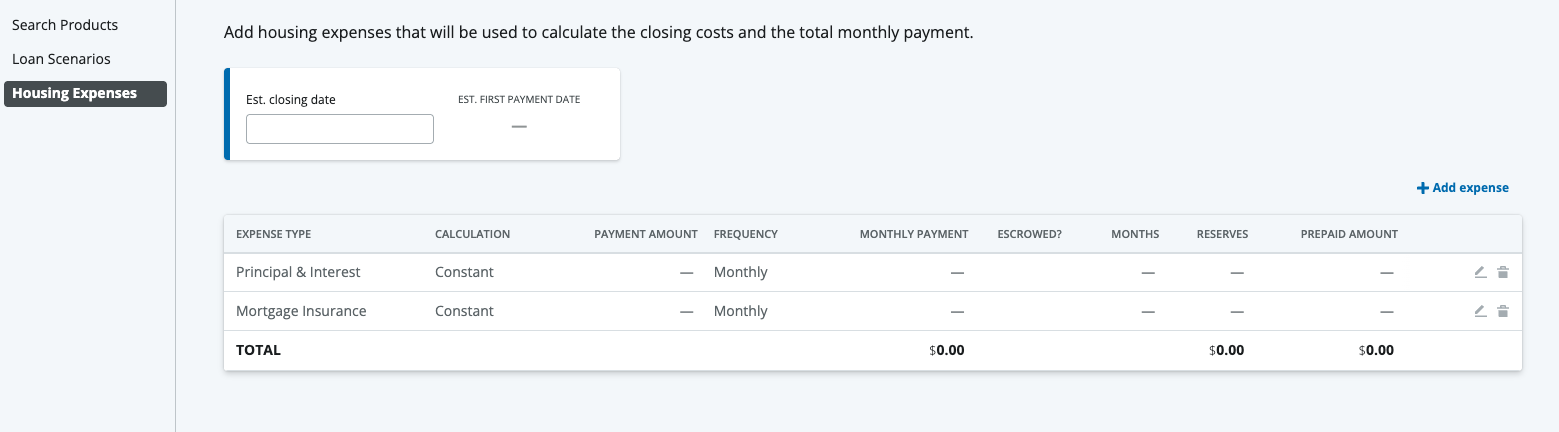
Lenders can also manually enter estimated housing expenses to give borrowers a clearer view of their potential monthly payments and escrow amounts. To access this feature, navigate to the **QuickPricer** tab and select **Housing Expenses** from the left-hand navigation menu.

<figure><img src="https://2622734615-files.gitbook.io/~/files/v0/b/gitbook-x-prod.appspot.com/o/spaces%2F-MNeX8nmtEPnFygumL_k%2Fuploads%2F2JiBjgqXZVEJtl9xLuxU%2FScreenshot%202025-10-10%20at%203.08.31%E2%80%AFPM.png?alt=media&#x26;token=3b8dbf52-c7b9-4bb5-b165-49e8367d19a0" alt=""><figcaption></figcaption></figure>

#### Adding a Housing Expense

<figure><img src="https://2622734615-files.gitbook.io/~/files/v0/b/gitbook-x-prod.appspot.com/o/spaces%2F-MNeX8nmtEPnFygumL_k%2Fuploads%2F7JrwtsqfpEbMspXt3r6I%2FScreenshot%202025-10-10%20at%203.10.47%E2%80%AFPM.png?alt=media&#x26;token=b6a88de3-6e02-4a80-bac7-414305a915e9" alt=""><figcaption><p>The add expense modal allows you to estimate any housing expense</p></figcaption></figure>

1. Click the **+ Add Expense** button.
2. Select the **expense type** (e.g., Property Tax, Hazard Insurance, HOA Dues).
3. Choose the **calculation method**:&#x20;
4. Constant, Factor – Home Value, or Factor – Loan Amount.
5. Enter the **amount or factor**.
6. Specify the **payment frequency**.
7. Indicate whether the expense will be **escrowed**.
8. If escrowed, add the **number of months of reserves** and the **due dates**.

<figure><img src="https://2622734615-files.gitbook.io/~/files/v0/b/gitbook-x-prod.appspot.com/o/spaces%2F-MNeX8nmtEPnFygumL_k%2Fuploads%2F9fIBB87mValvuz9TvlzY%2FScreenshot%202025-10-10%20at%203.15.38%E2%80%AFPM.png?alt=media&#x26;token=fa9ad6f8-9a75-4bb3-b301-68a2a2af4063" alt=""><figcaption><p>The housing expenses table will summarize and calculate all monthly expenses and reserves.</p></figcaption></figure>

### Housing Expenses in Loan Scenarios View

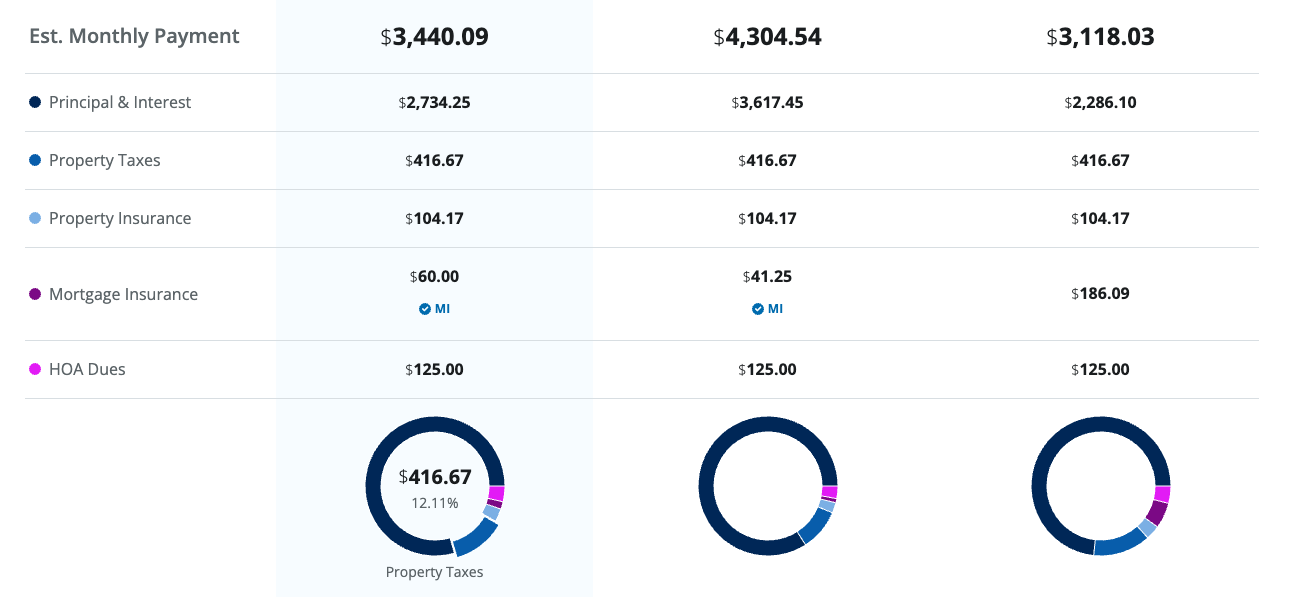
All items entered under **Housing Expenses** automatically appear in the borrower’s view within **Loan Scenarios**. This view also displays the estimated **Escrows & Prepaid** calculations, giving borrowers a clear picture of their total monthly housing costs.

<figure><img src="https://2622734615-files.gitbook.io/~/files/v0/b/gitbook-x-prod.appspot.com/o/spaces%2F-MNeX8nmtEPnFygumL_k%2Fuploads%2F6hT3CiSWOEy7YikESPbd%2FScreenshot%202025-10-10%20at%203.17.28%E2%80%AFPM.png?alt=media&#x26;token=b01468e0-6fec-4bcd-ac99-0c3ec6f3c781" alt=""><figcaption><p>Housing expenses display in the monthly payments </p></figcaption></figure>
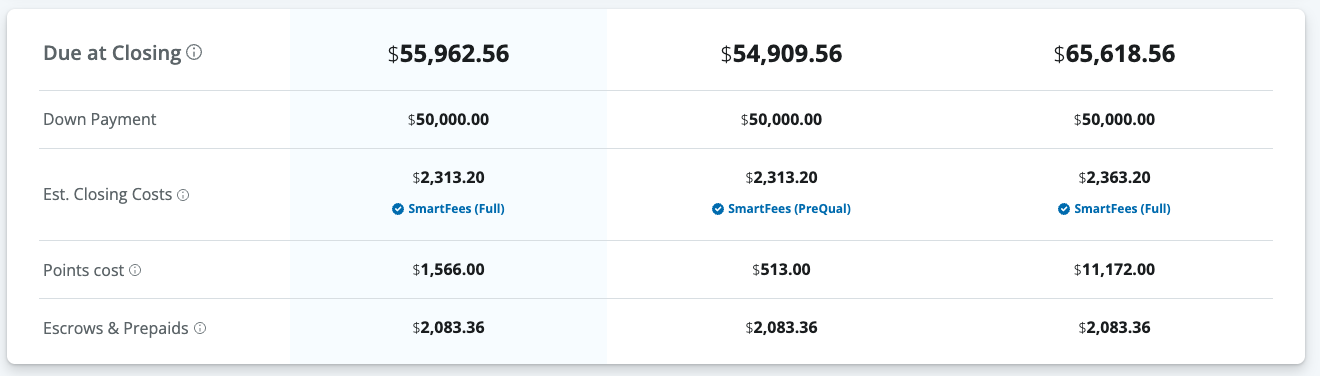
<figure><img src="https://2622734615-files.gitbook.io/~/files/v0/b/gitbook-x-prod.appspot.com/o/spaces%2F-MNeX8nmtEPnFygumL_k%2Fuploads%2FGfeNDILgWy4cT5hf4J9u%2FScreenshot%202025-10-10%20at%203.18.40%E2%80%AFPM.png?alt=media&#x26;token=39aa6393-db14-4f47-8b9e-50353cc805a7" alt=""><figcaption><p>We also display estimated escrows from the calculated months of reserves. </p></figcaption></figure>
## Sharing with Borrowers&#x20;

### **Viewing Product Details**

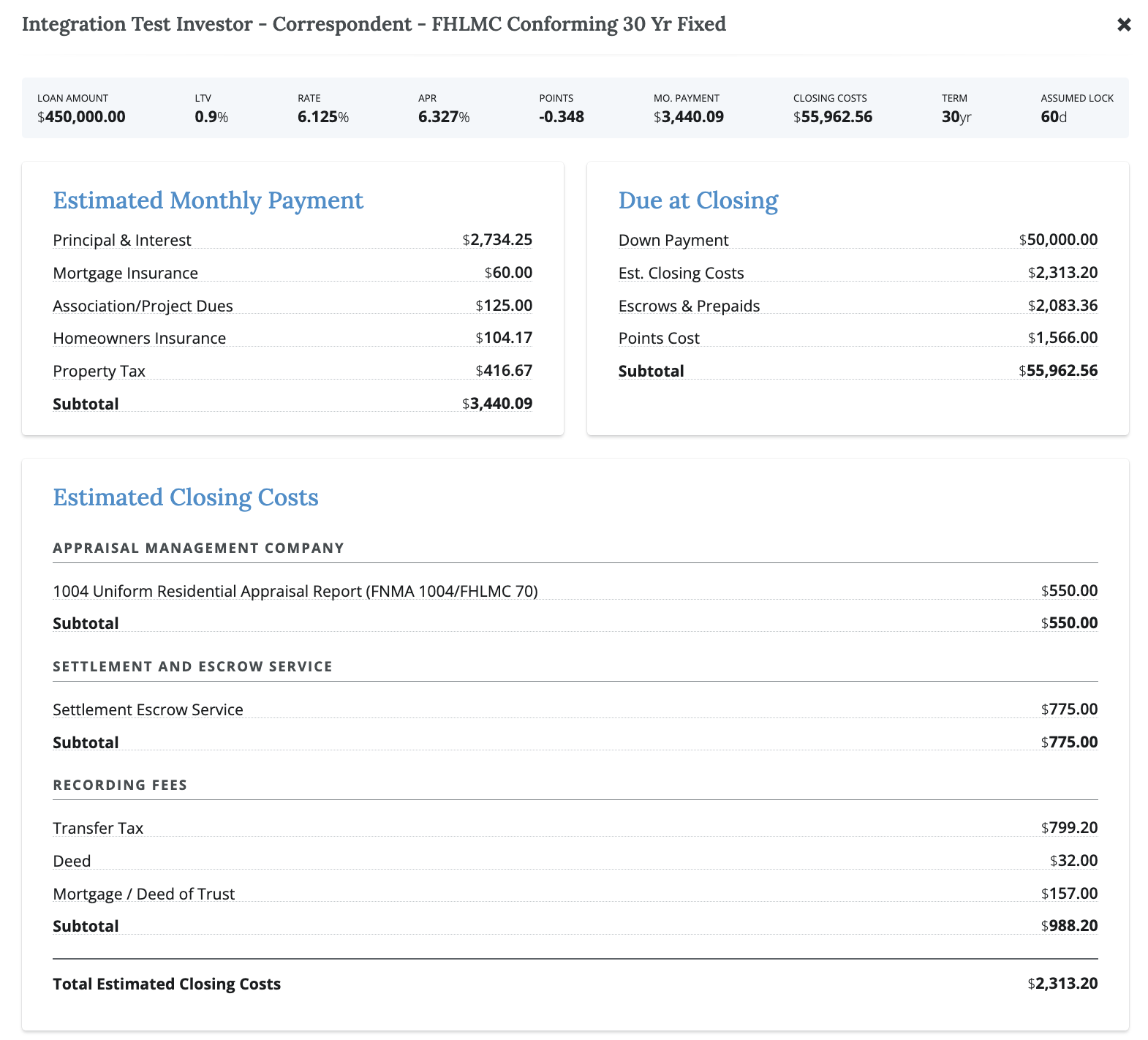
Prior to sending to the borrower, a lender may want to review all the itemized pricing. They can do so from  the product details view. From the manage dropdown select **Product Details to** LO  get an itemized breakdown of all monthly payment information, fees, and escrows to review prior to sending to the borrower.&#x20;

<figure><img src="https://2622734615-files.gitbook.io/~/files/v0/b/gitbook-x-prod.appspot.com/o/spaces%2F-MNeX8nmtEPnFygumL_k%2Fuploads%2FfSTZElUShEfuN4QWCWwT%2FScreenshot%202025-10-06%20at%202.42.23%E2%80%AFPM.png?alt=media&#x26;token=3d05bde6-77cc-42fa-a2d0-570980119025" alt=""><figcaption><p>Click product details from the manage dropdown to view an itemized list of all product information including estimated closing costs. </p></figcaption></figure>
### **Preview**&#x20;

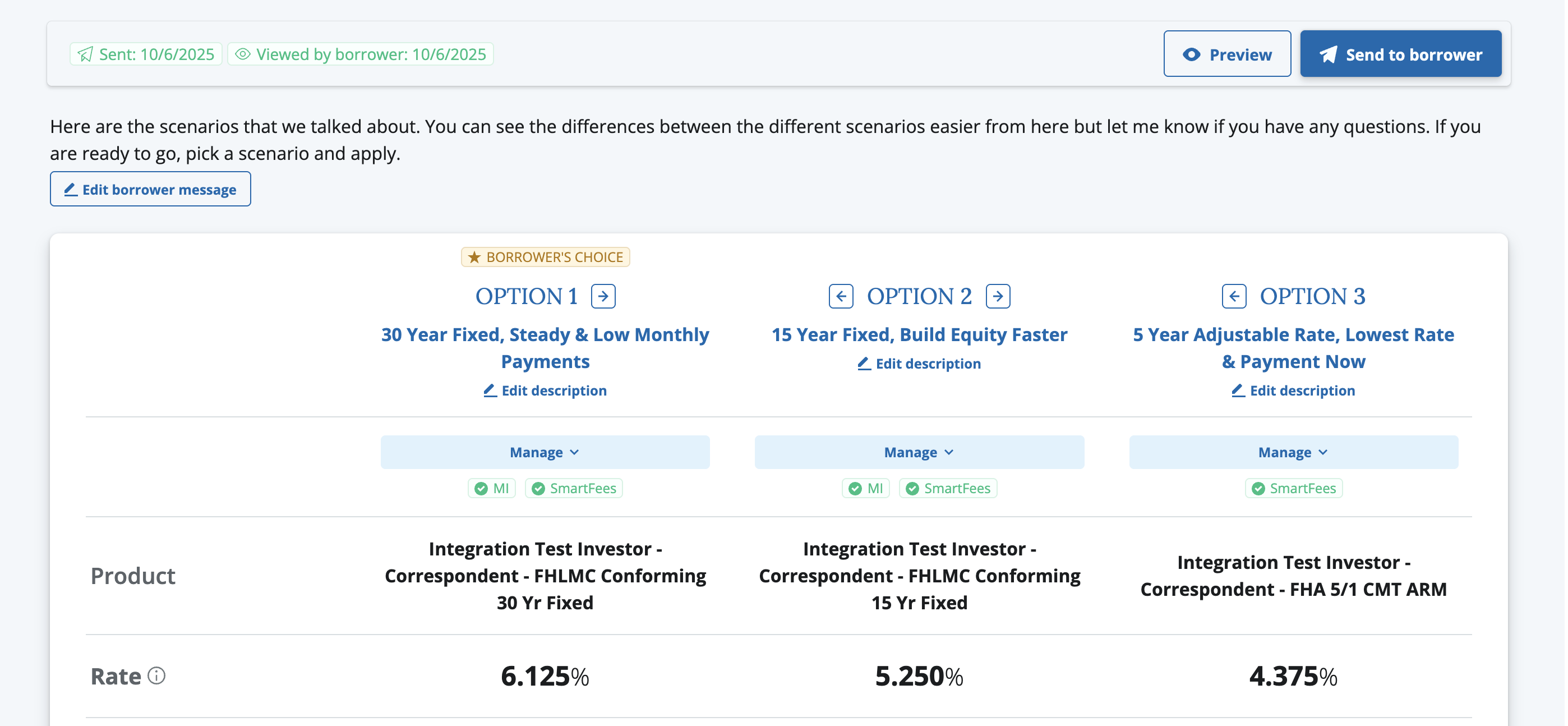
Before sending the scenarios to the borrower, the LO can click the **Preview** button in the upper-right corner of the **Loan Scenarios** tab to see exactly what the borrower will receive—without any editing controls visible. From there, they can decide whether the presentation is ready to send or if additional adjustments are needed.

<figure><img src="https://2622734615-files.gitbook.io/~/files/v0/b/gitbook-x-prod.appspot.com/o/spaces%2F-MNeX8nmtEPnFygumL_k%2Fuploads%2FB07YXMbfgt1N0F2OHsVi%2FScreenshot%202025-10-06%20at%202.46.28%E2%80%AFPM.png?alt=media&#x26;token=6a678d3d-03ac-4358-a85a-66e2a524024f" alt=""><figcaption><p>The LO can view </p></figcaption></figure>

From this view, the LO can see whether the scenarios have been shared with the borrower and how recently—helping them decide if a refreshed version needs to be sent.

<figure><img src="https://2622734615-files.gitbook.io/~/files/v0/b/gitbook-x-prod.appspot.com/o/spaces%2F-MNeX8nmtEPnFygumL_k%2Fuploads%2FfRDikyx4TCnkXbjg5OVW%2FScreenshot%202025-10-06%20at%202.46.58%E2%80%AFPM.png?alt=media&#x26;token=8476a963-b2e6-4801-b16b-a78811a87d93" alt=""><figcaption></figcaption></figure>

### **Send to Borrower**

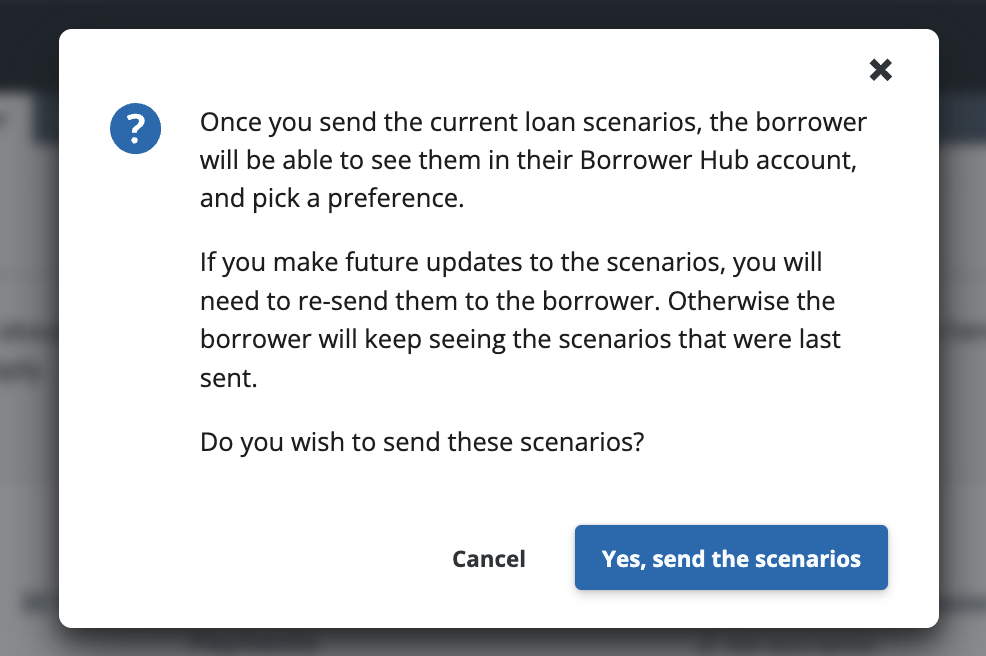
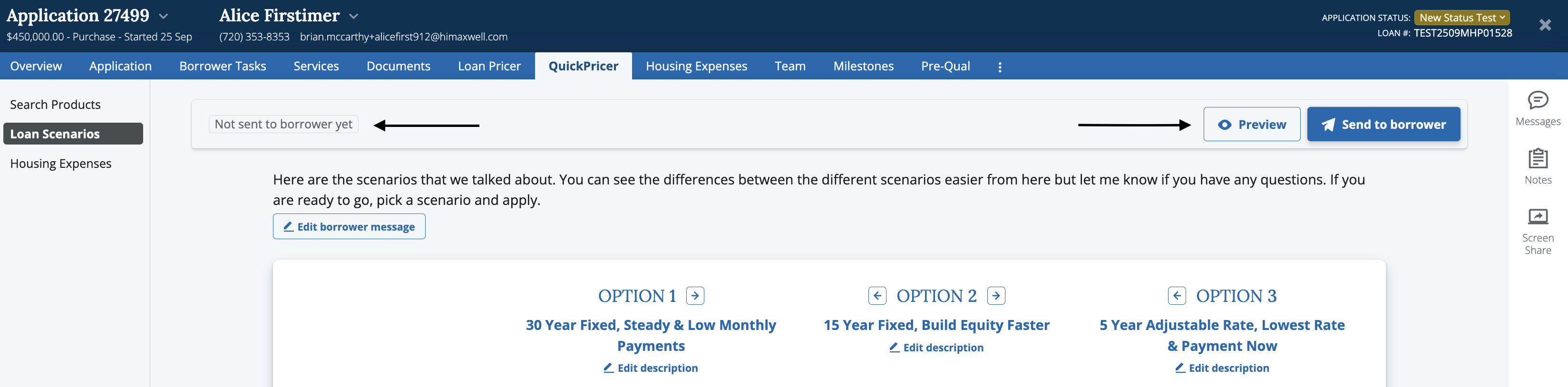
After the LO has prepared the scenarios they’d like to share with the borrower, they can click the **Send to Borrower** button in the upper-right corner of the **Loan Scenarios** page.

Upon clicking **Send to Borrower**, a confirmation message will appear, notifying the LO that once shared, the borrower will be able to view these scenarios.

<figure><img src="https://2622734615-files.gitbook.io/~/files/v0/b/gitbook-x-prod.appspot.com/o/spaces%2F-MNeX8nmtEPnFygumL_k%2Fuploads%2Fbk34XsFhGTtdqsqQUno9%2FScreenshot%202025-10-06%20at%202.54.17%E2%80%AFPM.png?alt=media&#x26;token=606bfab4-6593-472e-a86a-86051f08f7b6" alt="" width="563"><figcaption><p>Prior to sharing the scenarios we provide the LO a final confirmation. </p></figcaption></figure>
{% hint style="warning" %}
**Note:** Maxwell automatically updates loan scenarios as rates and payments change. LOs should review these scenarios periodically and resend updated pricing when rates change or products expire.

A disclaimer is provided to the borrower indicating that all pricing shared is an estimate and subject to change. Borrowers are advised to contact their LO to obtain a final Loan Estimate and lock their rate.
{% endhint %}

### Borrower Experience&#x20;

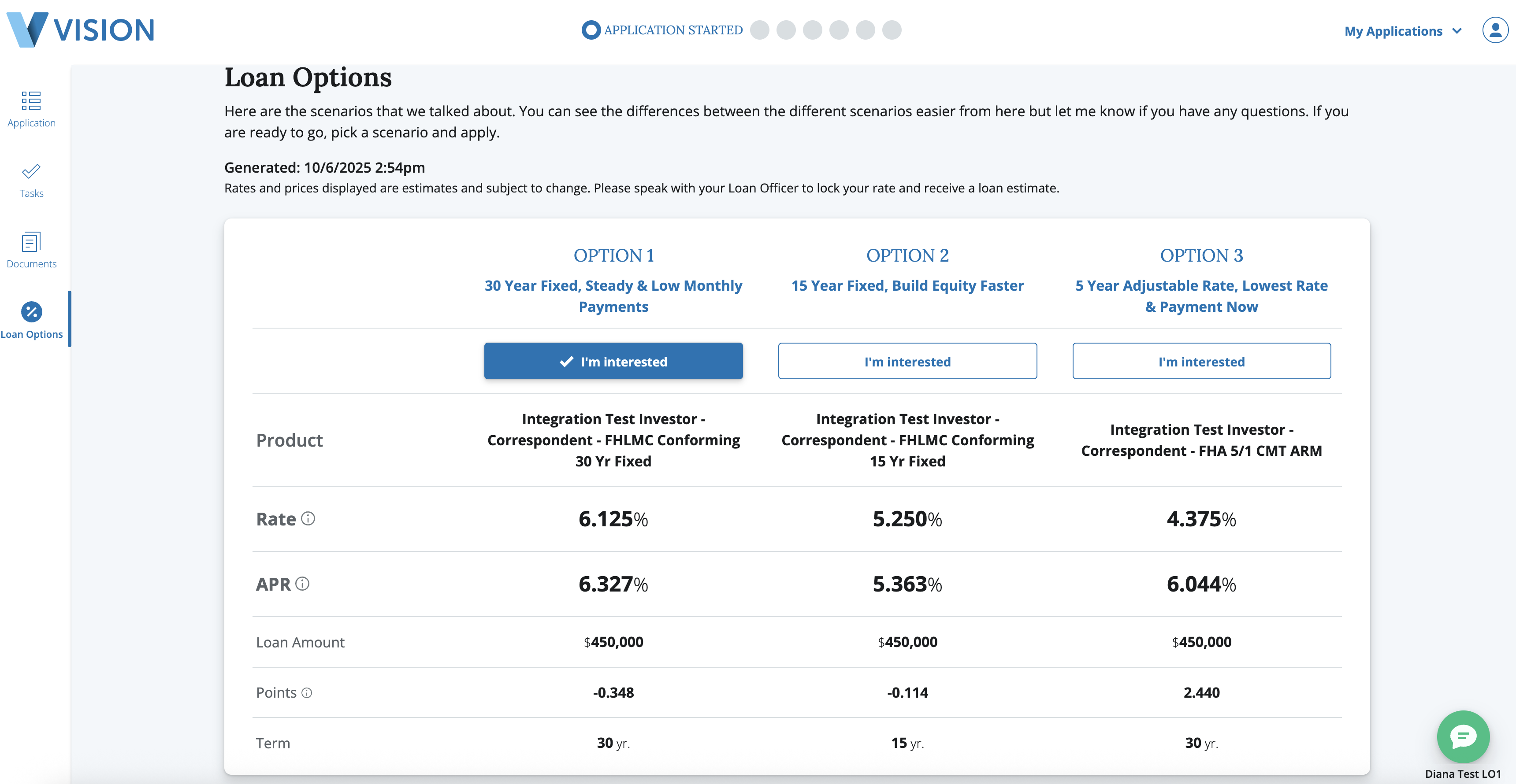
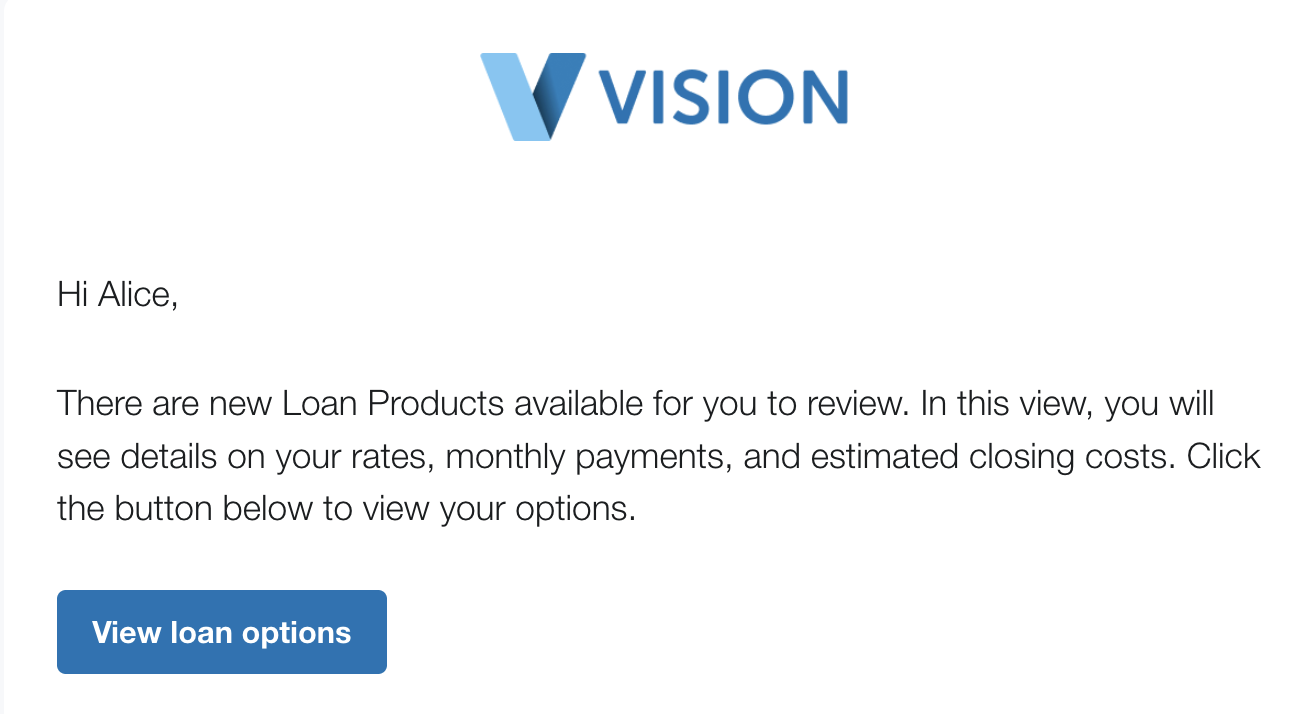
Once the scenarios have been sent, the borrower will receive an email notification letting them know that new loan products are available for review. The email includes a secure link directing them to view their loan options.

<figure><img src="https://2622734615-files.gitbook.io/~/files/v0/b/gitbook-x-prod.appspot.com/o/spaces%2F-MNeX8nmtEPnFygumL_k%2Fuploads%2FUe3cWxQhlULtDMw0WXsX%2FScreenshot%202025-10-06%20at%202.55.35%E2%80%AFPM.png?alt=media&#x26;token=c2bbc65b-4430-42fe-868f-ebb4532bb714" alt=""><figcaption></figcaption></figure>

<figure><img src="https://2622734615-files.gitbook.io/~/files/v0/b/gitbook-x-prod.appspot.com/o/spaces%2F-MNeX8nmtEPnFygumL_k%2Fuploads%2F90DhR2d5C61tiNWXHWco%2FScreenshot%202025-10-06%20at%202.57.09%E2%80%AFPM.png?alt=media&#x26;token=cfb36ce4-f5ff-4008-b123-448986b8379b" alt=""><figcaption></figcaption></figure>

When the borrower clicks the link, they’ll be directed to a new tab within their loan file called **Loan Options**. There, they can view the loan products you’ve shared with them.

This is a great opportunity for the LO to call the borrower and use the **Screen Share** tool to walk them through the loan scenarios and answer any questions in real time.

If the borrower is ready to move forward with a specific loan scenario, they can click the **I’m Interested** button to send a notification to the LO. Once selected, the LO receives an update in the loan file indicating that the borrower has viewed their loan scenarios and, if applicable, expressed interest in a particular option.

***

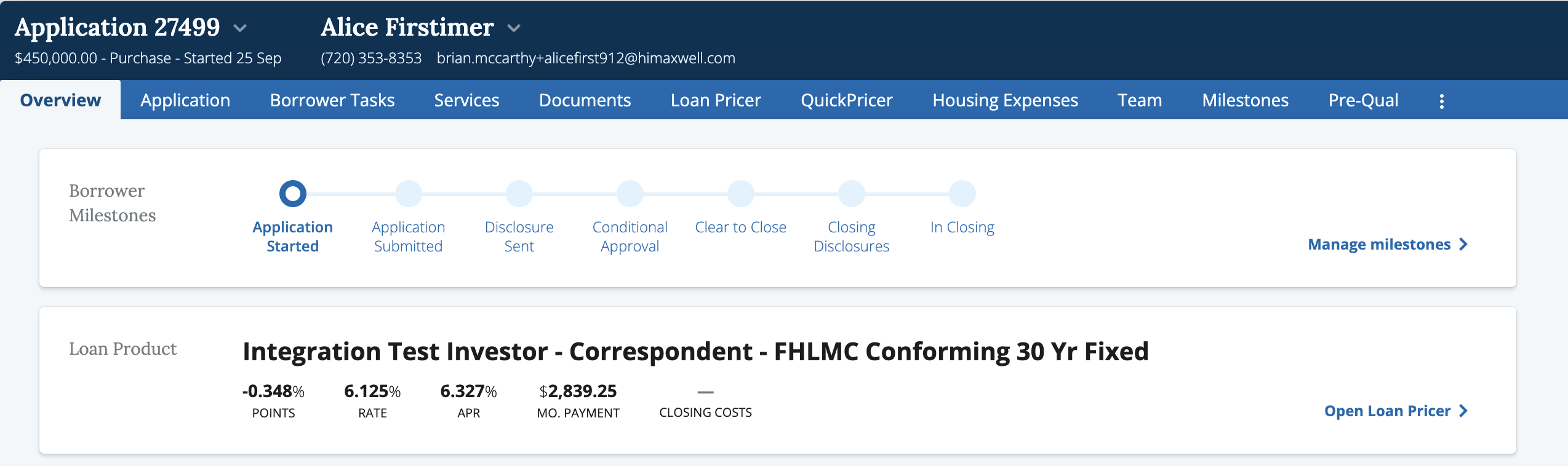
<figure><img src="https://2622734615-files.gitbook.io/~/files/v0/b/gitbook-x-prod.appspot.com/o/spaces%2F-MNeX8nmtEPnFygumL_k%2Fuploads%2FmMWAzyIEDhFiuQMzhfqY%2FScreenshot%202025-10-06%20at%203.11.38%E2%80%AFPM.png?alt=media&#x26;token=c649112e-c292-44c1-9fa8-34cb8455ccda" alt=""><figcaption><p>The loan officer sees updates of when the borrower last viewed the loan scnearios and if they have made a choice on a loan product. </p></figcaption></figure>
## Product Selection & Rate Locking

### **Select Product**&#x20;

When the borrower is ready to move forward with a product, the LO can select that product in QuickPricer. Doing so triggers several actions on the back end of the loan file:

* Updates the loan file with the borrower’s selected product
* Populates the 3.4 MISMO with all relevant product and pricing information, including:
  * Product name and ID
  * PITI details
  * Fees information
  * Other housing expense details
* Enables the LO to run [**AUS**](https://docs.himaxwell.com/~/changes/665/platform-overview/admins-and-tech-support/integrations/aus) on the selected product
* Enables the LO to generate and send a [**pre-qualification letter**](https://docs.himaxwell.com/~/changes/665/platform-overview/lender-hub/pre-qualification-letter) for the selected product

<figure><img src="https://2622734615-files.gitbook.io/~/files/v0/b/gitbook-x-prod.appspot.com/o/spaces%2F-MNeX8nmtEPnFygumL_k%2Fuploads%2FSfFMqmNasXPs5pTtC0Pn%2FScreenshot%202025-10-06%20at%203.30.25%E2%80%AFPM.png?alt=media&#x26;token=a459d558-dbf0-4907-b786-df4af82201b7" alt=""><figcaption></figcaption></figure>

<figure><img src="https://2622734615-files.gitbook.io/~/files/v0/b/gitbook-x-prod.appspot.com/o/spaces%2F-MNeX8nmtEPnFygumL_k%2Fuploads%2FUf6OS9fVvXNEl6uRTXVL%2FScreenshot%202025-10-06%20at%203.31.10%E2%80%AFPM.png?alt=media&#x26;token=bfb629ab-1172-46dd-ac0e-aaa275fd28a3" alt=""><figcaption><p>Select a loan updates the product selection across all sections of the loan application. </p></figcaption></figure>
The LO can change the selected product and update all related information under two conditions:

**1. The loan is not yet rate-locked or lock pending**

Before a loan is locked in the POS, the LO can continue making updates to pricing and product details. Once the loan is locked, however, no further updates can be made to that file.\
To make additional pricing changes, the LO will need to **copy the file** and create new pricing scenarios under the new loan.

**2. The loan file has not yet synced with the LOS**

The LO can modify pricing and continue to run **AUS** or generate a **pre-qualification letter** after the loan has synced to the LOS. However, any pricing scenarios modified **after** syncing will **not** update in the LOS.\
This safeguard prevents overwriting any pricing or product data that has already been finalized in the LOS or pricing engine.

### **Rate Lock**

With Maxwell, LOs can move seamlessly from pricing scenarios to a full **rate lock** directly within the POS—supported by integrations between **Optimal Blue (OB)** & **Encompass**, and **PriceMyLoan (PML)** & **MLM**. This enables loan officers to manage the entire pricing and rate lock process with their borrowers from one unified platform.

After the LO selects a loan product, the **Rate Lock** button becomes available in the **Manage Product** dropdown.

<figure><img src="https://2622734615-files.gitbook.io/~/files/v0/b/gitbook-x-prod.appspot.com/o/spaces%2F-MNeX8nmtEPnFygumL_k%2Fuploads%2FdvwY7u9AnicqCd70J9nF%2FScreenshot%202025-10-10%20at%202.32.36%E2%80%AFPM.png?alt=media&#x26;token=ae0d9b5b-6b9e-4c63-9b72-0ffbd07d42ee" alt="" width="293"><figcaption><p>Rate Lock enabled after the loan is "Selected" </p></figcaption></figure>
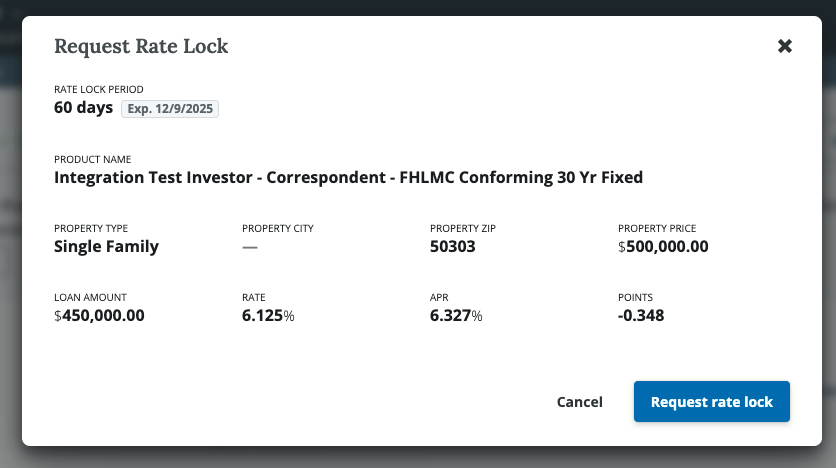
After selecting rate lock a the LO will see a modal for a last chance to review and modfy the selected product details.&#x20;

<figure><img src="https://2622734615-files.gitbook.io/~/files/v0/b/gitbook-x-prod.appspot.com/o/spaces%2F-MNeX8nmtEPnFygumL_k%2Fuploads%2FDtYEGLT6wej0cGv47uqA%2FScreenshot%202025-10-10%20at%202.35.08%E2%80%AFPM.png?alt=media&#x26;token=b0038ded-6d27-4fd0-ac4a-dac69401c472" alt=""><figcaption></figcaption></figure>

When the LO selects **Request Rate Lock**, several actions are triggered in the background between Maxwell’s POS, P\&PE, and LOS integrations:

* If a loan file hasn’t already been created in the LOS, Maxwell will automatically create it and begin syncing all **3.4 MISMO** and pricing data to the LOS.
* The system sends the **rate lock request** to the P\&PE.
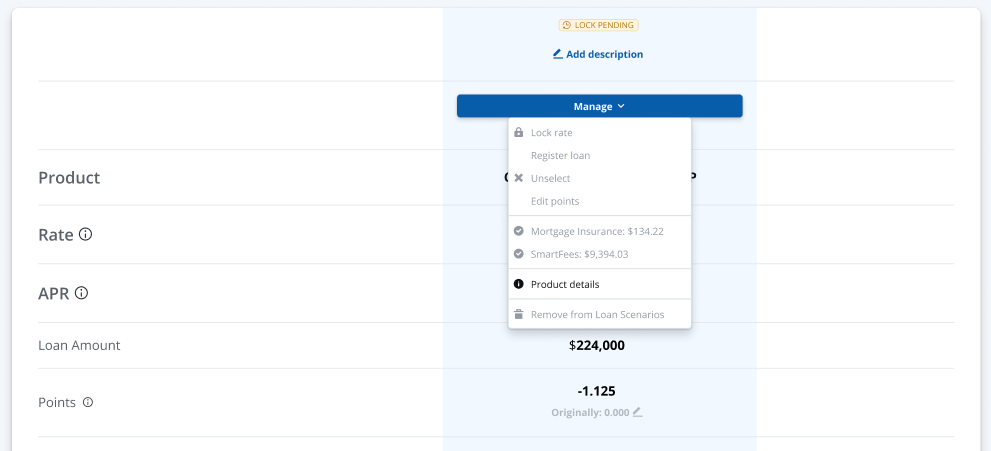
* Pricing in the POS is **frozen**, and the product selection is moved into a **Lock Pending** status until a response is received from the Pricing Engine.

<figure><img src="https://2622734615-files.gitbook.io/~/files/v0/b/gitbook-x-prod.appspot.com/o/spaces%2F-MNeX8nmtEPnFygumL_k%2Fuploads%2F3dDXN9REGWuyX7sdI4Z1%2FScreenshot%202025-10-10%20at%202.37.55%E2%80%AFPM.png?alt=media&#x26;token=7337548f-9f7f-4c6a-afca-9e990eec7b23" alt=""><figcaption><p>After a Rate Lock is requested we move the file into "Lock Pending" status until we get a response from the P&#x26;PE.</p></figcaption></figure>

The rate lock request is sent to the P\&PE which manages the review and approval or rejection process based on your organization’s P\&PE settings. Once a decision is returned, Maxwell displays either a **Rate Lock Success, Rejected, or Error** message.

**Lock Success**

If the lock is successful, Maxwell will:

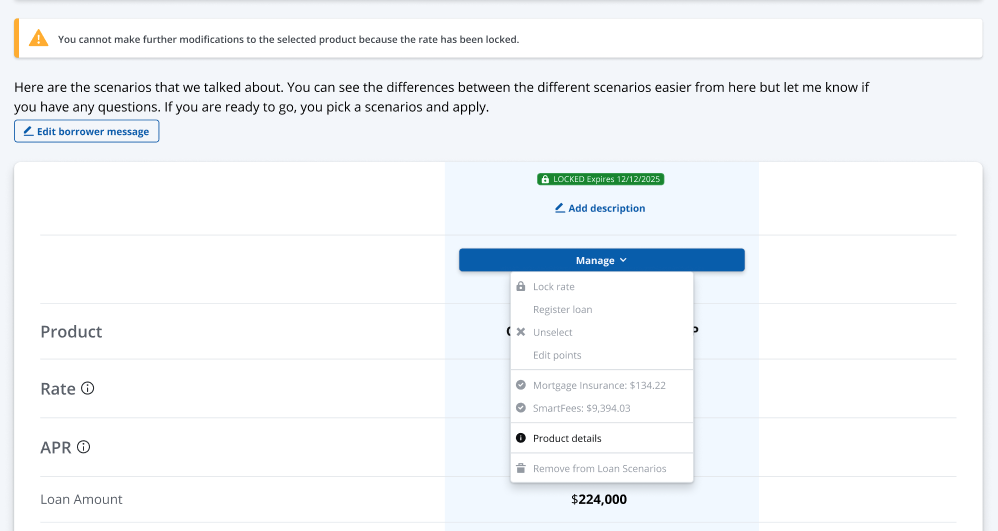
* Display a **LOCKED** status on the loan file
* Show the **lock expiration date**
* Freeze all pricing actions on the file to prevent further updates

<figure><img src="https://2622734615-files.gitbook.io/~/files/v0/b/gitbook-x-prod.appspot.com/o/spaces%2F-MNeX8nmtEPnFygumL_k%2Fuploads%2F5mnFD5cAxS98Yww82Mwa%2FScreenshot%202025-10-10%20at%202.44.30%E2%80%AFPM.png?alt=media&#x26;token=5c31d887-2b89-4327-a8ab-ed9299919b9d" alt=""><figcaption></figcaption></figure>

{% hint style="info" %}
**NOTE:** After a file has been locked an LO can no longer edit pricing within the POS. Any updates on Lock status on pricing will need to occur on the pricing engine.&#x20;

If a lender needs to adjust pricing or explore a different scenario they will need to copy the file and begin new pricing scenarios on that file.&#x20;
{% endhint %}

**Lock Rejected/Error**

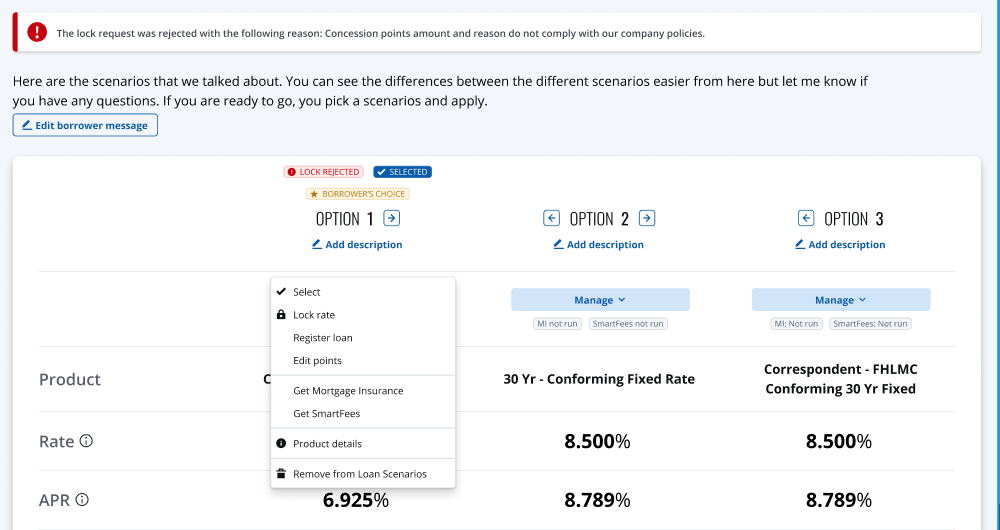
If the rate lock request is unsuccessful, Maxwell will display a **Lock Error** message indicating that the lock attempt failed. The error message will include details returned from your P\&PE to help identify the cause—such as rate expiration, concession limits, or missing data.

The LO can review the message, make any necessary adjustments, and **resubmit the rate lock request** once the issue has been resolved.

<figure><img src="https://2622734615-files.gitbook.io/~/files/v0/b/gitbook-x-prod.appspot.com/o/spaces%2F-MNeX8nmtEPnFygumL_k%2Fuploads%2FDLPC0ZbN79MByv6vY4Am%2FScreenshot%202025-10-10%20at%202.44.12%E2%80%AFPM.png?alt=media&#x26;token=c7c0be97-46db-4e73-ade1-965ccb928a7c" alt=""><figcaption><p>On Lock Rejected we display notes when available to help the LO fix the error. </p></figcaption></figure>

## Summary & Questions

If you’ve made it this far, congratulations! You’re now an expert on the **QuickPricer** tool.

If you still have questions or suggestions on how we can improve the pricing experience to better serve your team and borrowers, please reach out to us at **<help@himaxwell.com>**.