> For the complete documentation index, see [llms.txt](https://docs.himaxwell.com/llms.txt). Markdown versions of documentation pages are available by appending `.md` to page URLs; this page is available as [Markdown](https://docs.himaxwell.com/platform-overview/lender-hub/borrower-tasks.md).
# Borrower Tasks
## Video Overview
## Borrower Tasks in the Lender Hub
The **Borrower Tasks** tab is one of the most frequently used areas of the Lender Hub. It’s where borrowers submit most of the information and documents needed to process their loan.
This page provides a single, secure workspace for loan officers to request data, collect documents, and obtain e-signatures from borrowers.
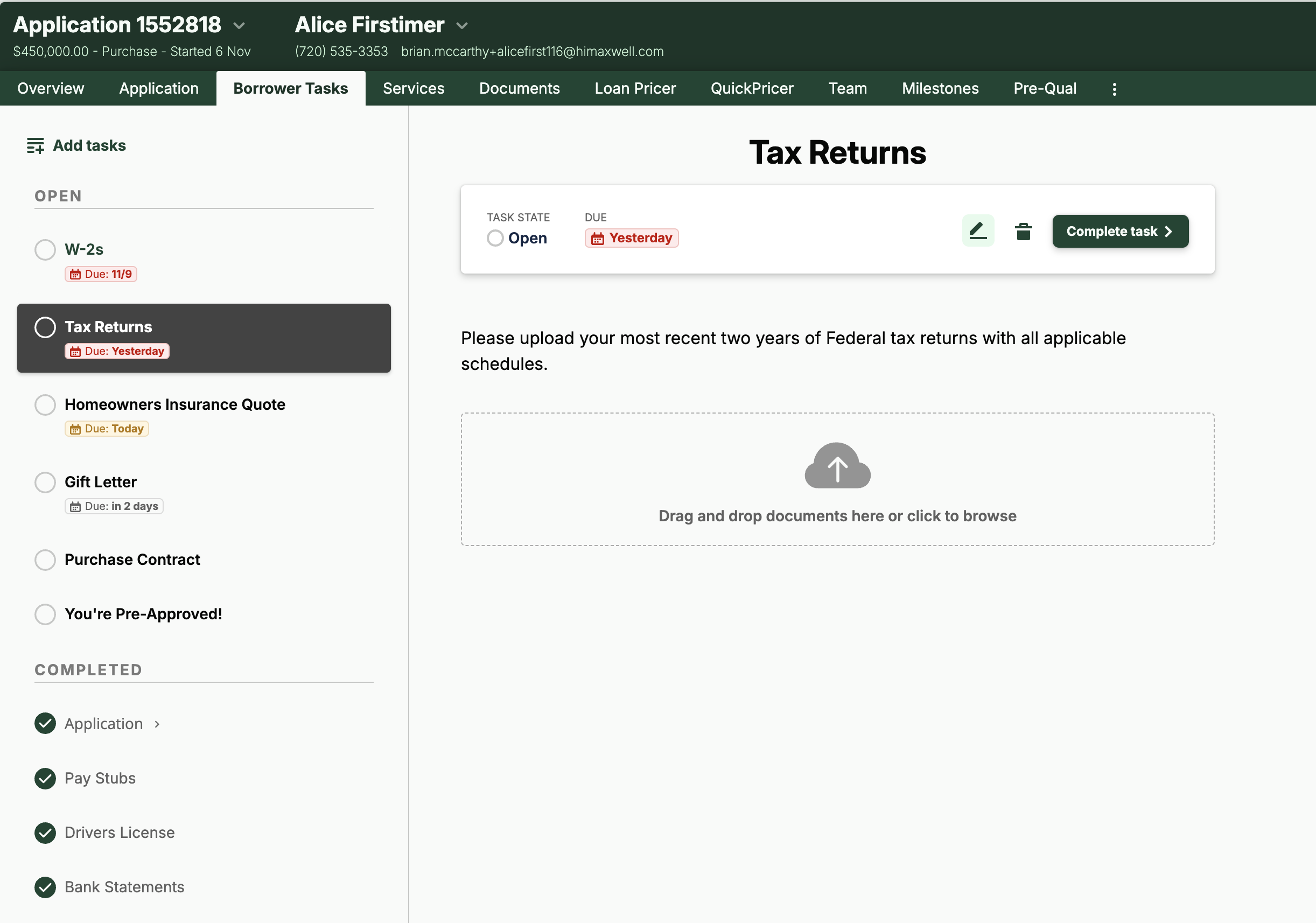
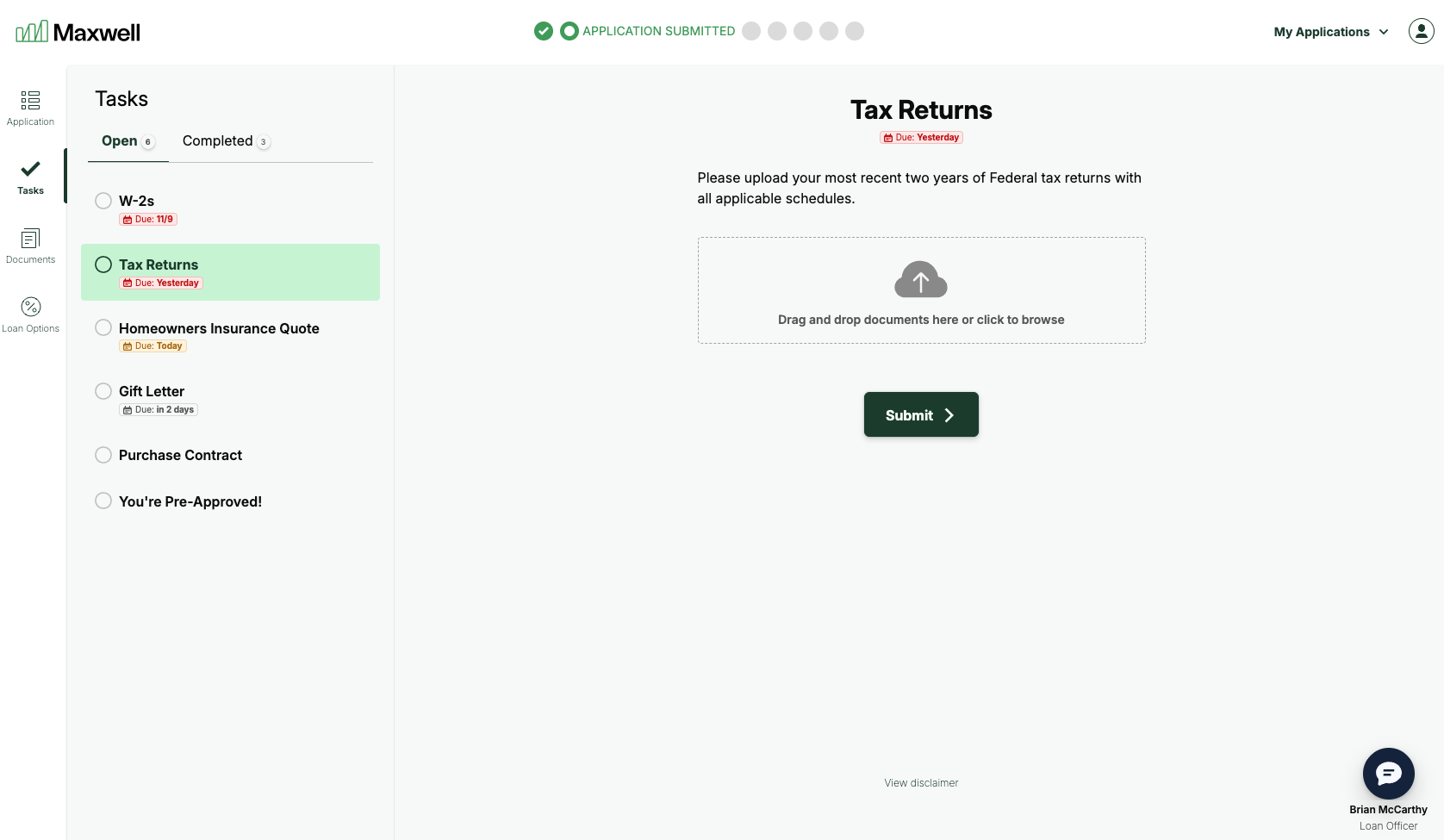
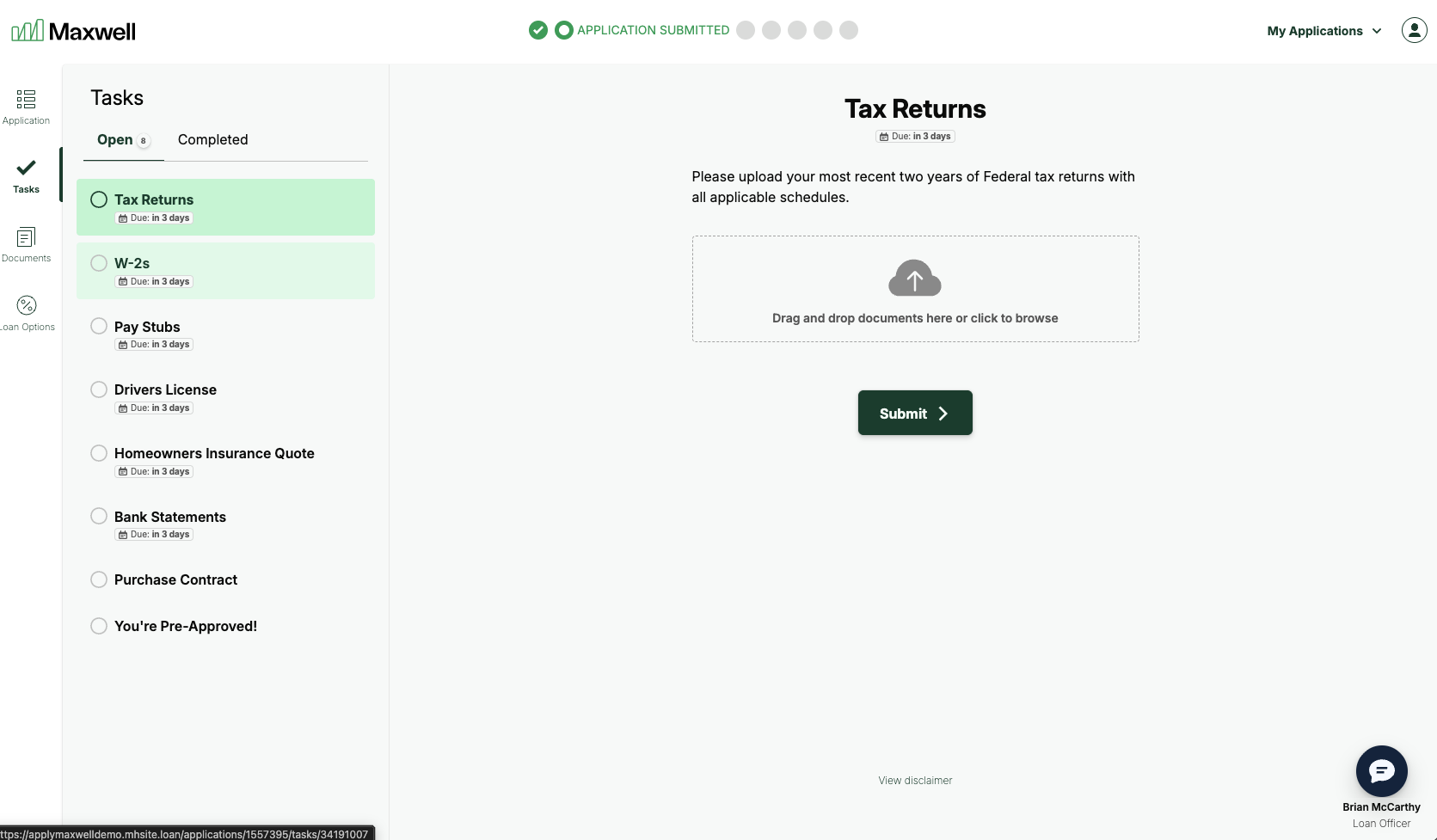
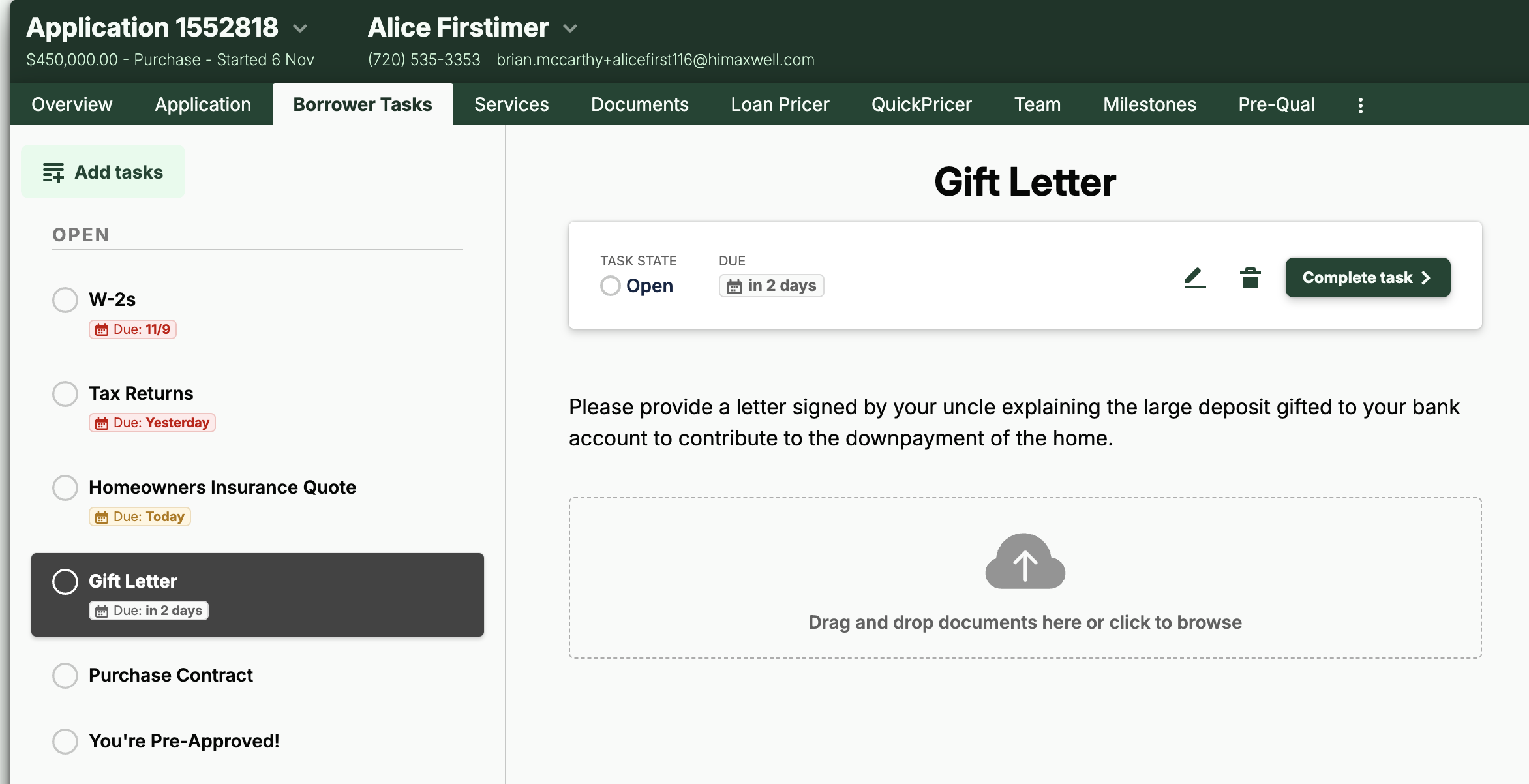
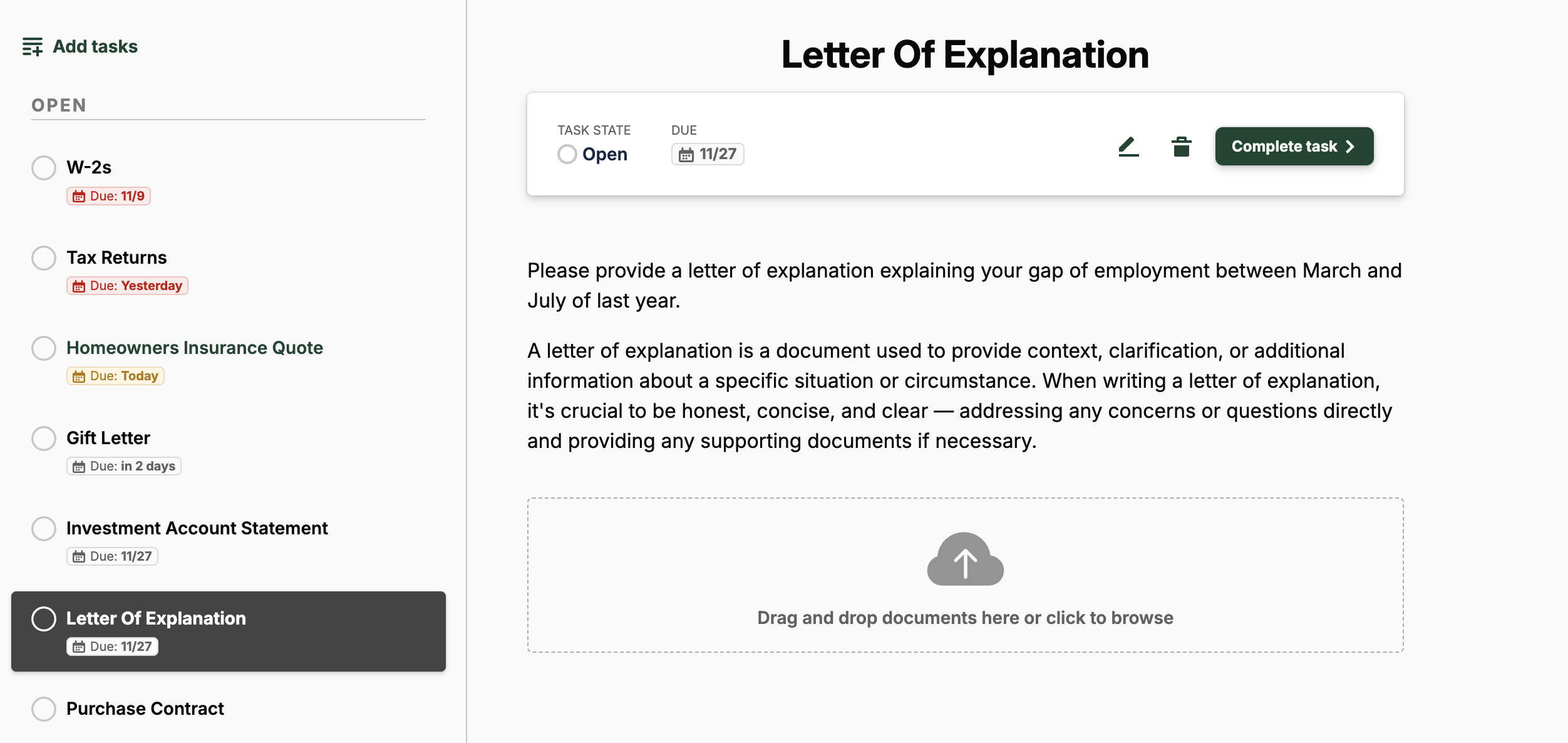
The view closely mirrors what the borrower sees in the Borrower Hub, including each task and its current status. This allows loan officers to track a borrower’s progress through the application, review and complete submitted tasks, and create follow-up tasks based on loan conditions.
Lender View of the Borrower Tasks tab.
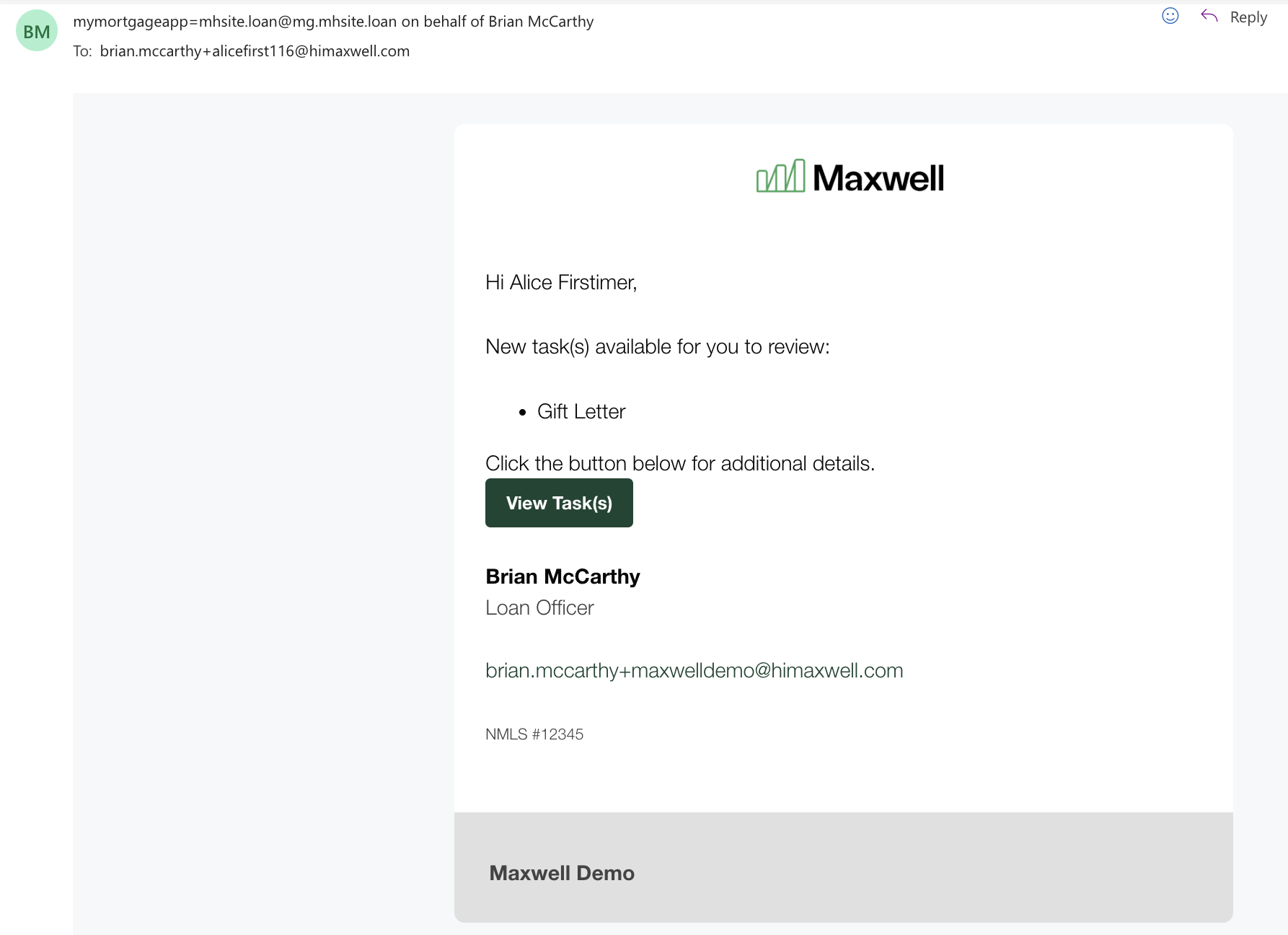
The Borrower Hub view of the tasks experience.
### Creating Tasks for Borrowers
Within the point of sale, there are three types of tasks you can assign to borrowers:
1. [**Application Tasks**](#application-tasks) **–** These are the core data-gathering tasks that mirror the URLA and are presented to the borrower during their initial application. This can also include [optional pre-qualification workflows](#optional-pre-qualification-application-workflows) such as VOA/E, Credit, Price Shopping, and even automated AUS pre-qualification.
2. **Automatic SmartTasks** – These tasks are generated automatically based on information gathered in the application or other conditions triggered within the file.
3. **Manual Follow-Up Tasks** – These tasks are created manually by lender team members when additional information or documents are needed from the borrower.
## Application Tasks
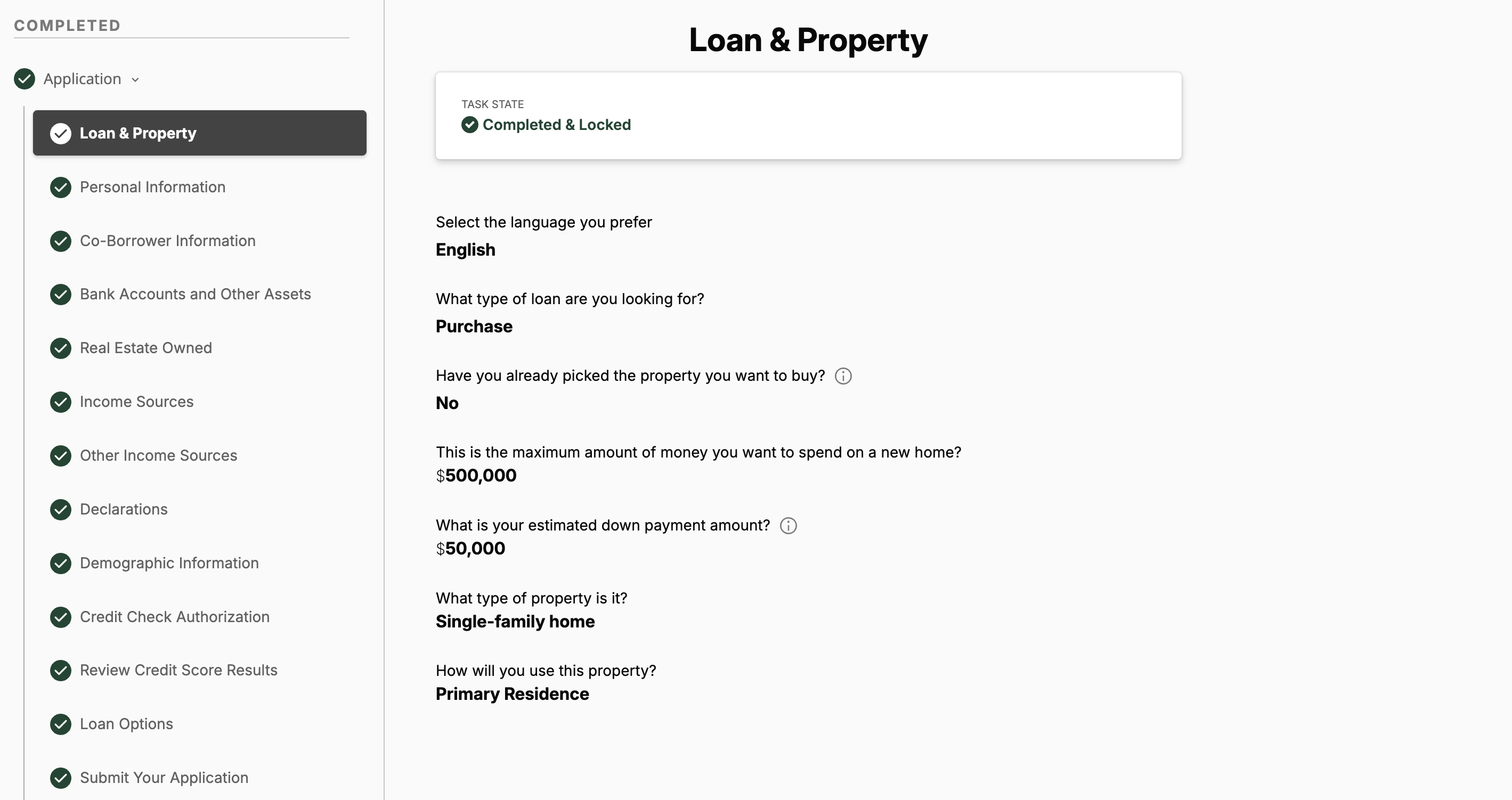
Application Tasks include all the data-gathering questions in your loan application blueprint that borrowers are required to complete. While these tasks typically mirror the questions found in the URLA, your organization can customize which questions are included or omitted during onboarding. This allows you to tailor the application experience to your specific workflow and information needs. This view mirrors what is presented to your borrowers and shows all information completed up to this point.
{% hint style="info" %}
**Note:** This view is a replica of what the borrower sees. It differs from the template in the Application tab, which is designed specifically for lender users.
If you need to edit or update application information, we recommend using the [**Application tab**](/platform-overview/lender-hub/lender-application-view.md). It’s optimized for power users and won’t restrict access to sections or edits based on completion status.
{% endhint %}
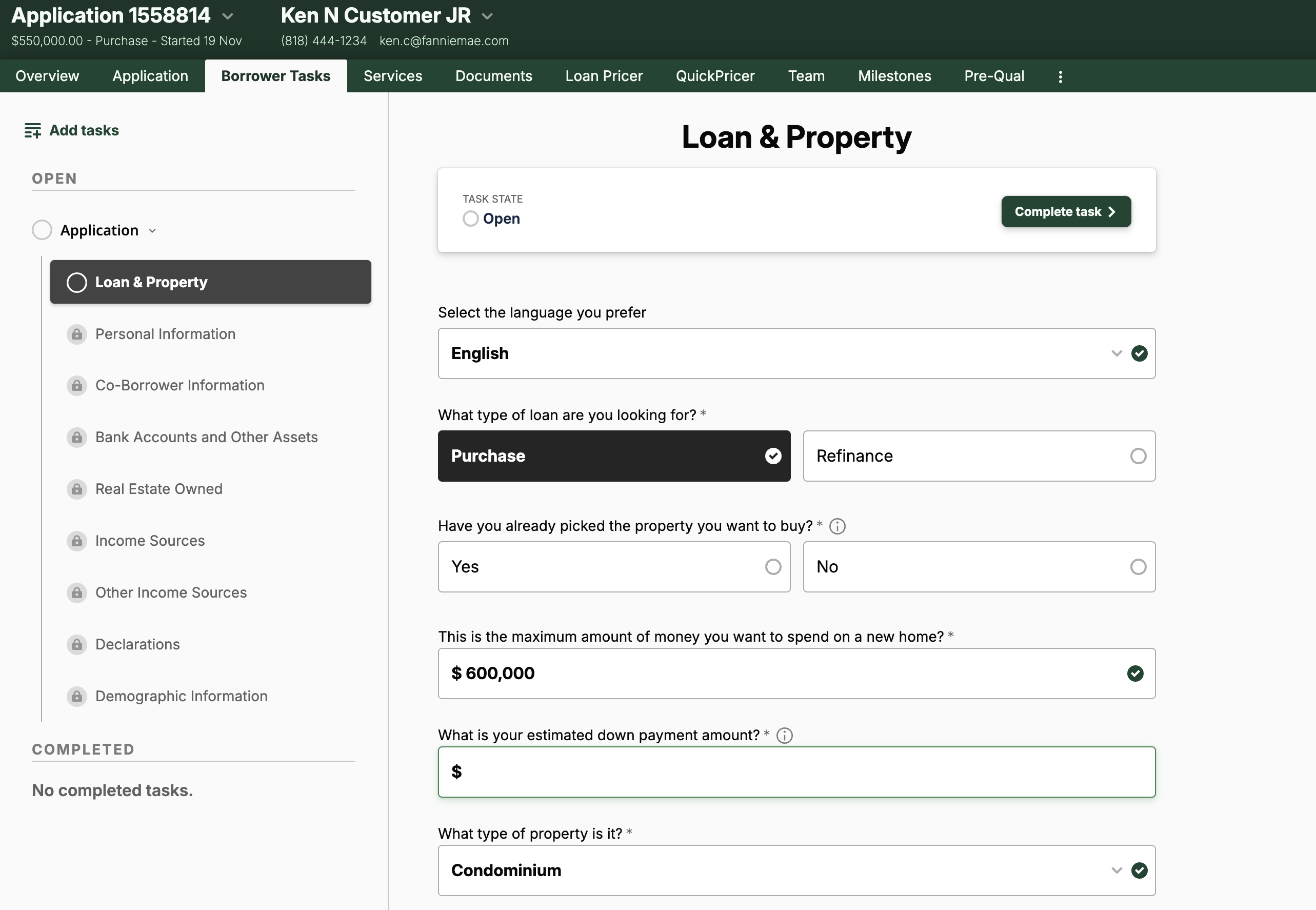
#### **Open State**
If the borrower has opened a task but has not yet submitted it, the task will display with editable fields. This view is useful when completing an application with a borrower in person or over the phone.
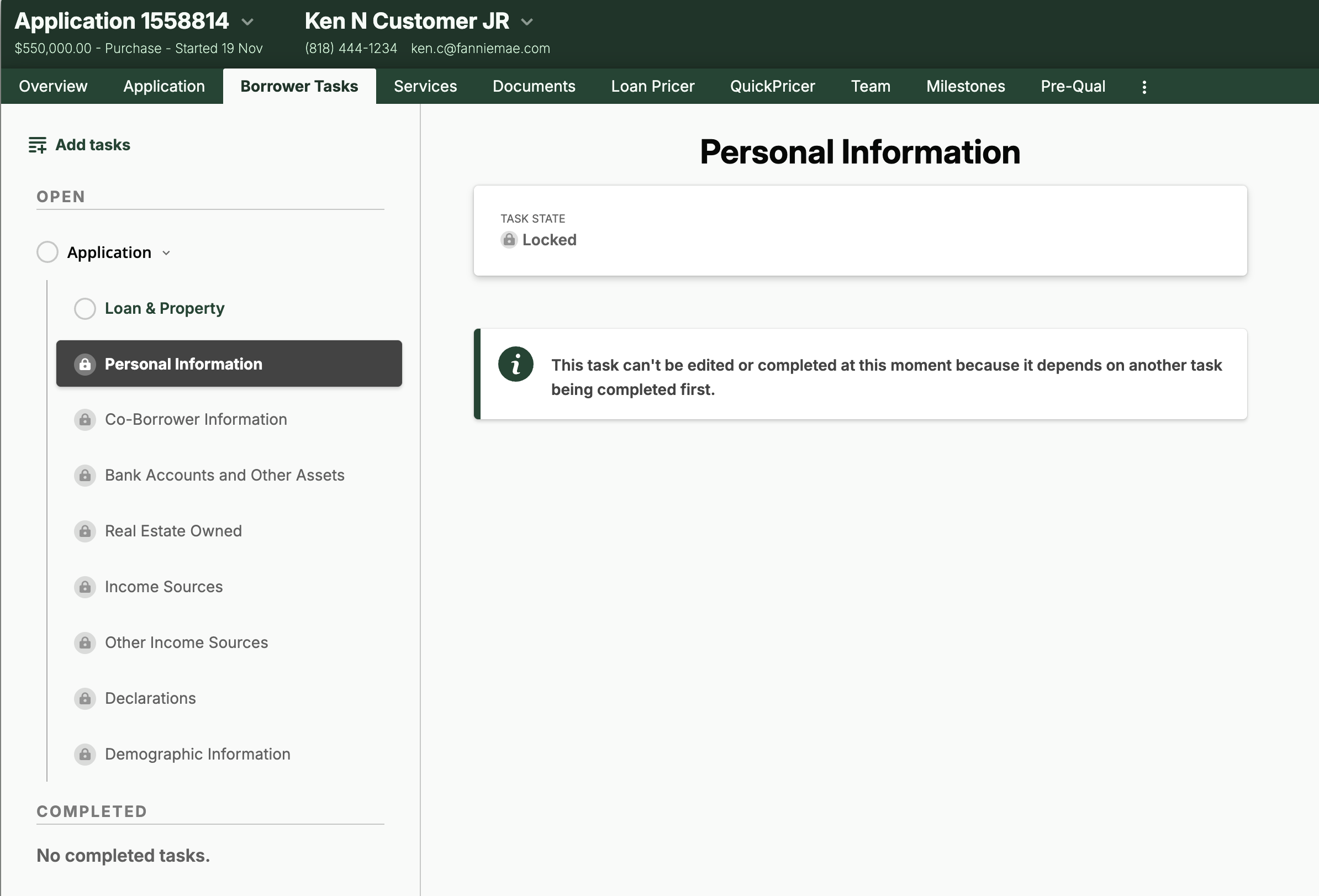
#### **Locked State**
If the borrower has not started an application section, it will appear in a locked state. This usually means another task must be completed and submitted before the borrower can begin that section.
#### **Completed State**
When a borrower submits or completes an application section, it appears in a read-only summary view. Once the borrower has finished and submitted all required sections, the full application will show in the **Completed Tasks** section.
{% hint style="info" %}
**NOTE:** You can enable [optional workflows that support a fully self-serve pre-qualification](#optional-pre-qualification-application-workflows) experience during the initial borrower application.
Each workflow requires valid credentials with one of our [supported integration partners.](/platform-overview/admins-and-tech-support/integrations/third-party-integrations-overview.md)
**Available optional workflows include:**
* VOA/VOE
* Credit Check
* Price Shopping
* Automated Underwriting Services (AUS)
* Pre-Qualification Letters
{% endhint %}
#### Consents and Authorizations
During the application process, borrowers are presented with required **Consents & Authorizations**. These items include links to your organization’s full legal language and, when applicable, require the borrower to provide authorization before continuing. Your organization can customize both the language and the full terms shown to the borrower.
Once the borrower provides consent, the system generates a PDF record that includes the full terms, along with the date, time, and IP address of acceptance. This document is stored in the **Document Vault**, where it is accessible to both the borrower and the lender.
## Follow Up Tasks
Any task that falls outside of the loan application blueprint is considered a follow-up task. These tasks may be created automatically by the POS based on loan logic and conditions (SmartTasks) or added manually by a lender working the file.
### SmartTasks
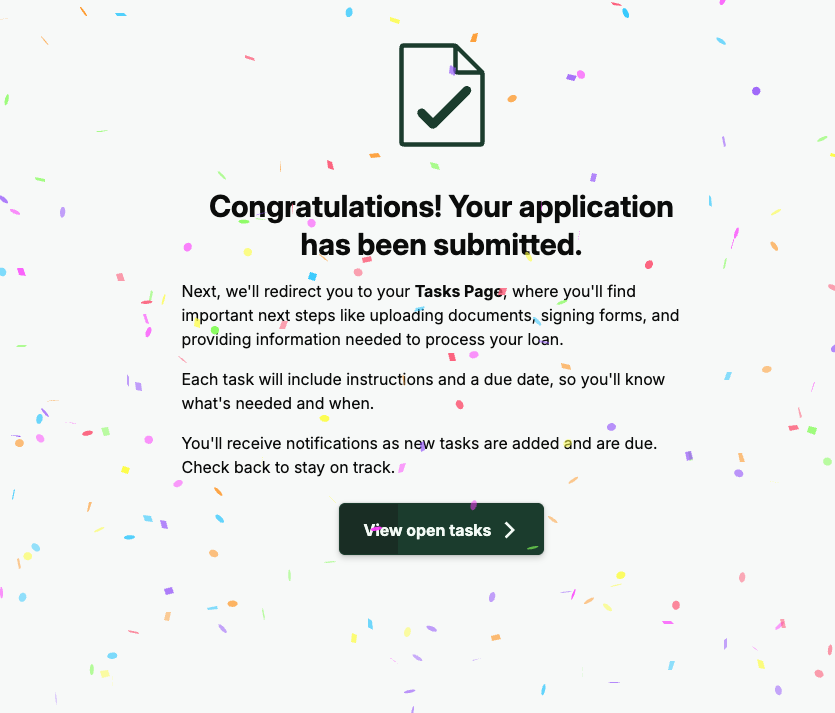
**SmartTasks** are automatically generated follow-up tasks created when specific data points or conditions are met during the loan application process. These tasks appear for the borrower after the application is submitted or when another required condition is triggered on the loan file.
On average, Maxwell generates **8–10 SmartTasks** per loan. This automation reduces manual work for your team, shortens borrower wait times, and helps ensure the file is complete and ready for underwriting.
SmartTasks are triggered when certain conditions are met in the application. For example:
* **If the loan purpose is Refinance or Contains REO with a Mortgage →** Create a *Mortgage Statement* follow-up task.
* **If the borrower indicates they are a military veteran →** Create a *VA Certificate of Eligibility* task
* **If the selected loan product is an ARM →** Create an *ARM Disclosure* task
Our standard blueprint includes approximately 20 templated SmartTasks. Your organization can customize this list by adding or removing SmartTasks to match your workflows and loan programs supported.
### Manual Follow Up Tasks
There will be situations where additional information is needed from a borrower that is not automatically generated by the system. In these cases, you can create **Manual Follow-Up Tasks** to request the items you need.
To create a manual follow-up task:
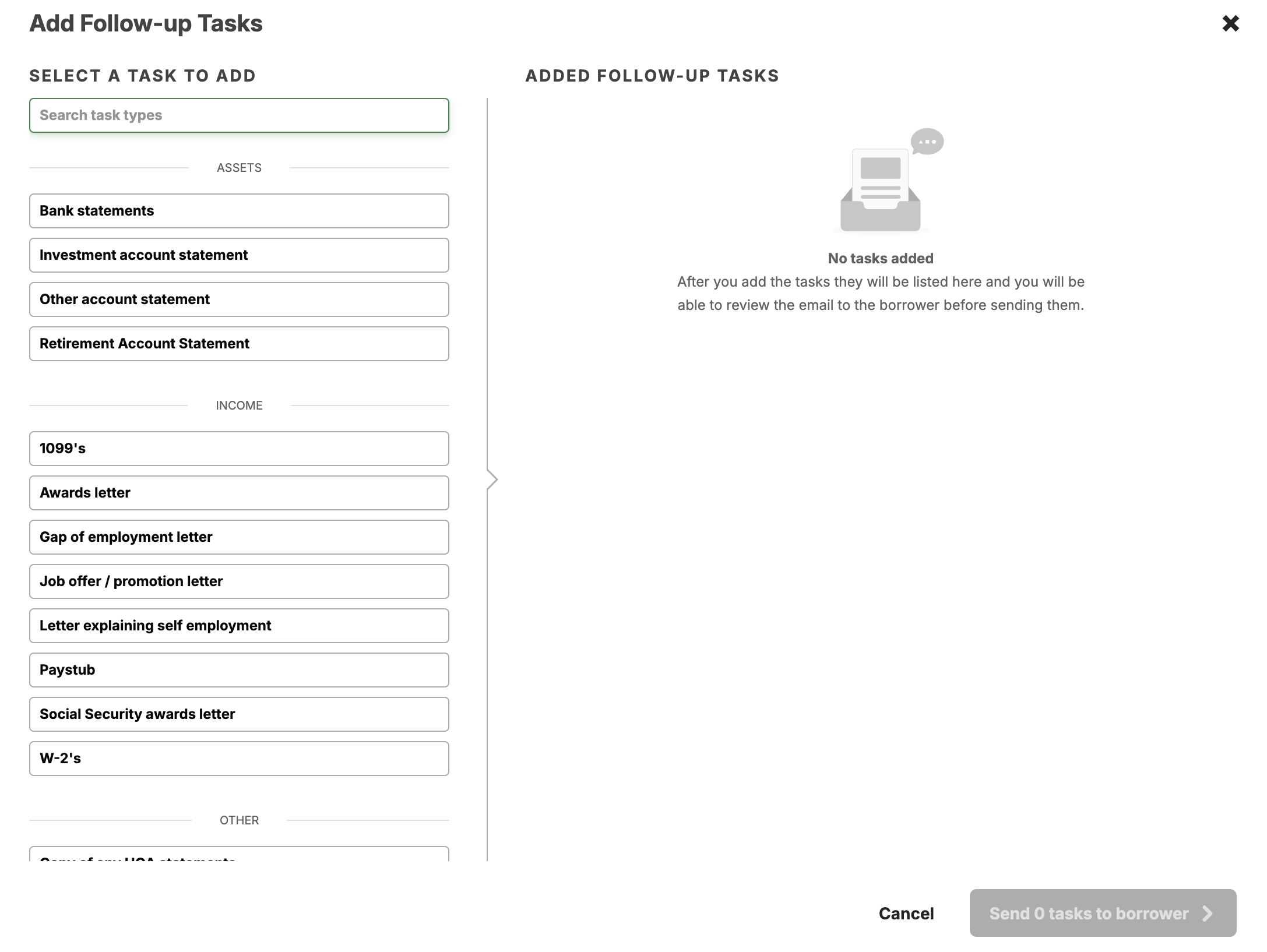
1. Go to the **Borrower Tasks** tab in the loan file.
2. In the upper-left corner, click the **Add Tasks** button.
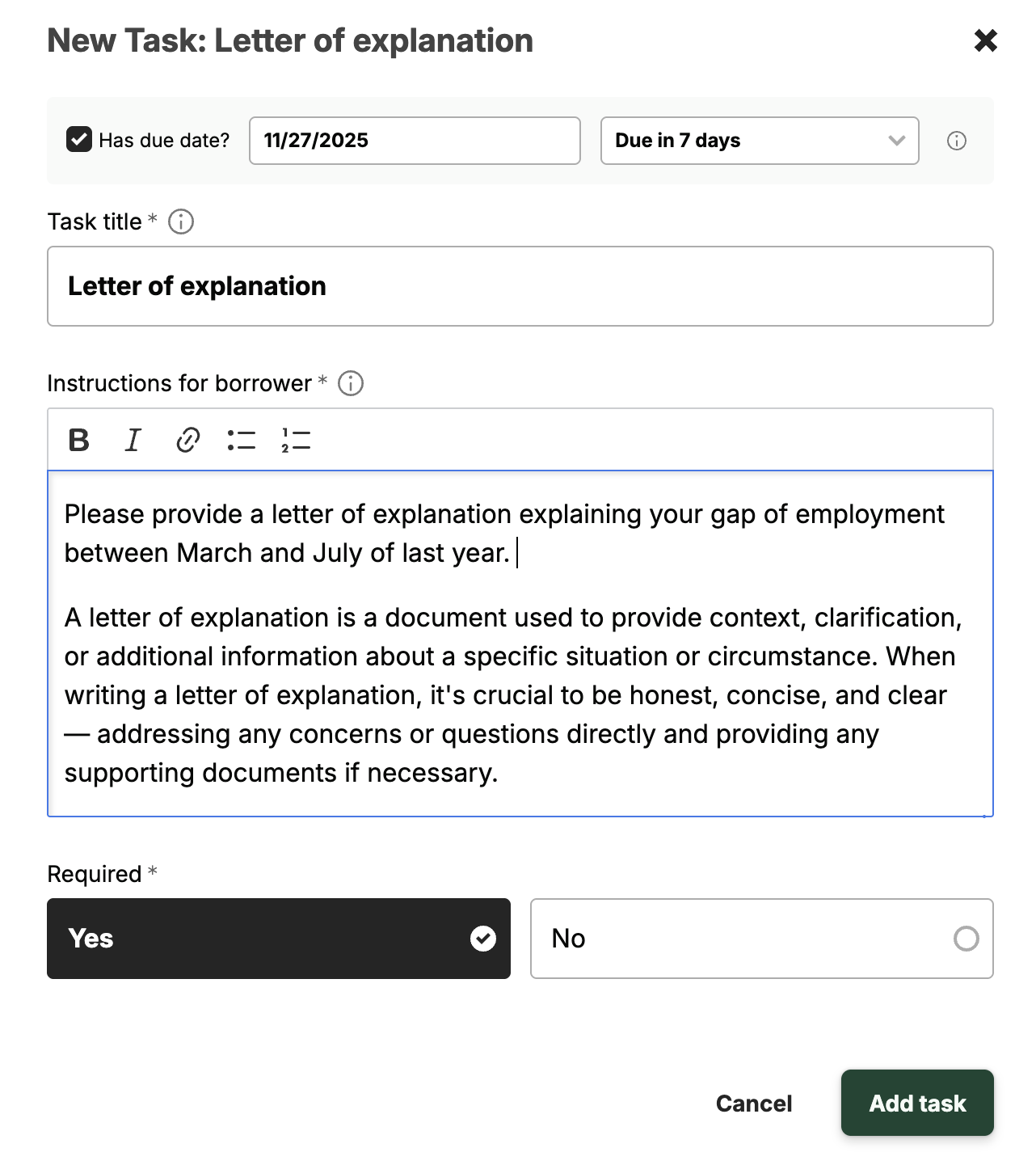
3. In the window that opens, search for and select a task from the list on the left.\
Maxwell provides a standard set of common follow-up tasks, each with default prompts and timelines. If none of the standard tasks fit your needs, you can create a **custom task**.
4\. Edit the task prompt, due date, and whether the task is required.
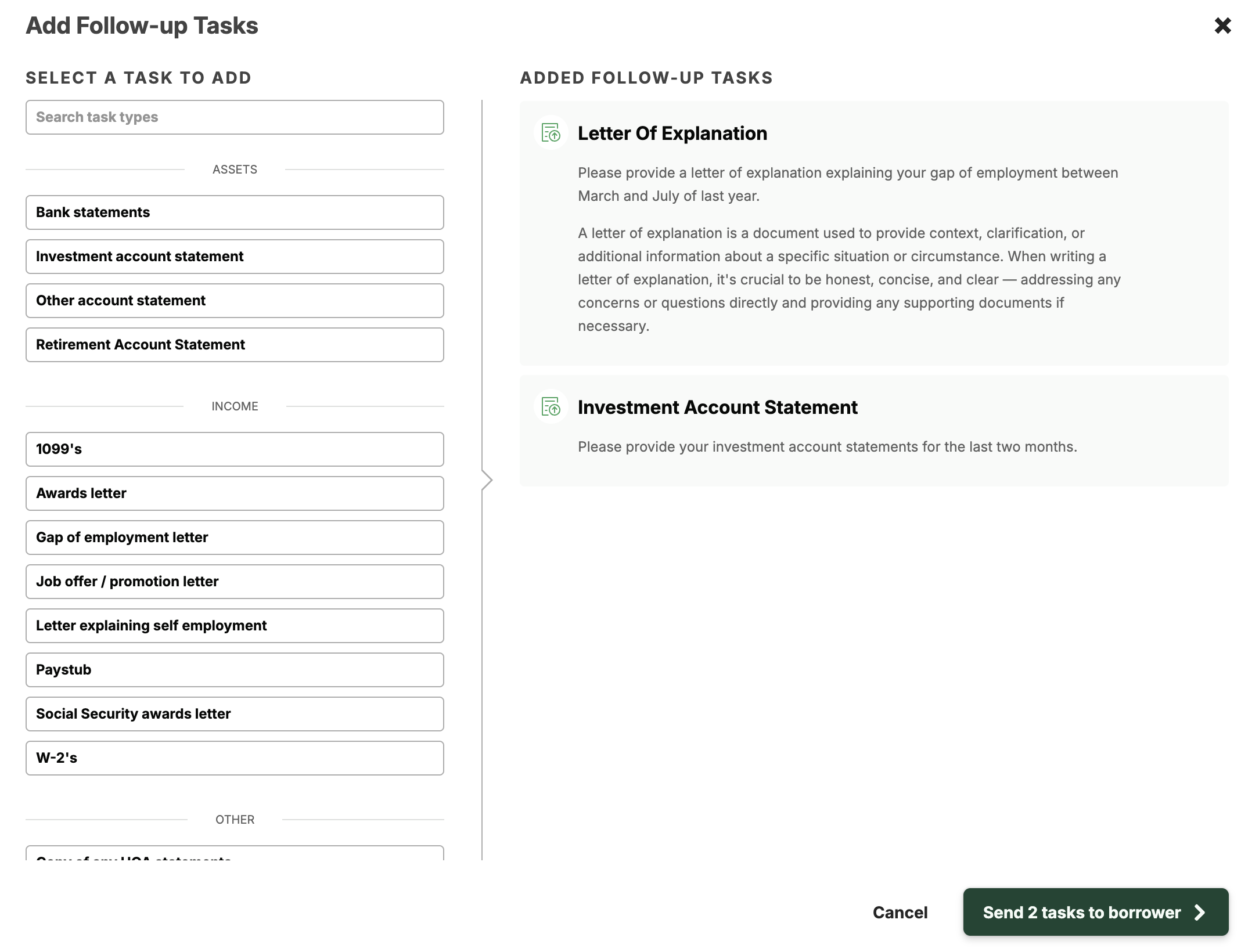
5. Repeat steps 3 and 4 for as many tasks as you need to add.
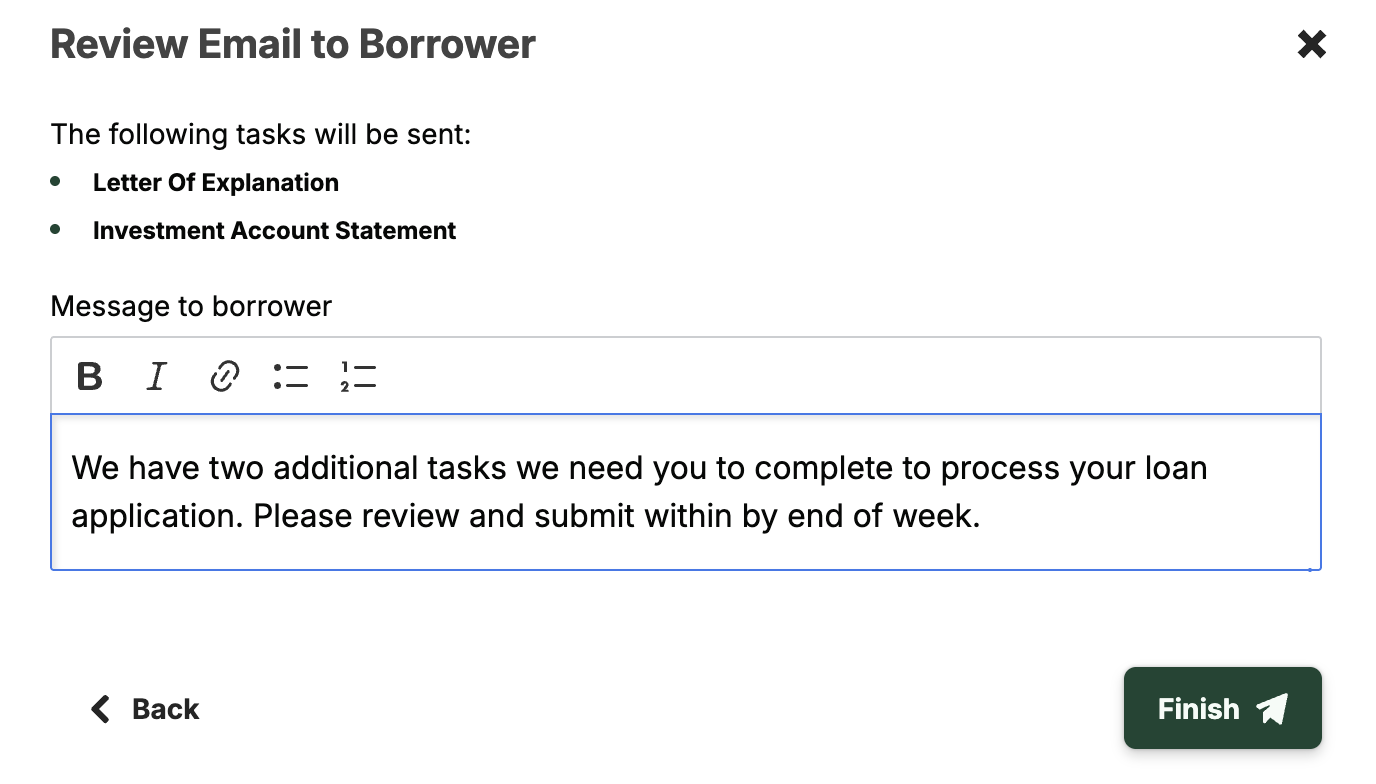
5. Select **Send Tasks to Borrower** and add a message for the email notification.
6. Click **Finish**. You will see the new tasks in the **Open Tasks** list.
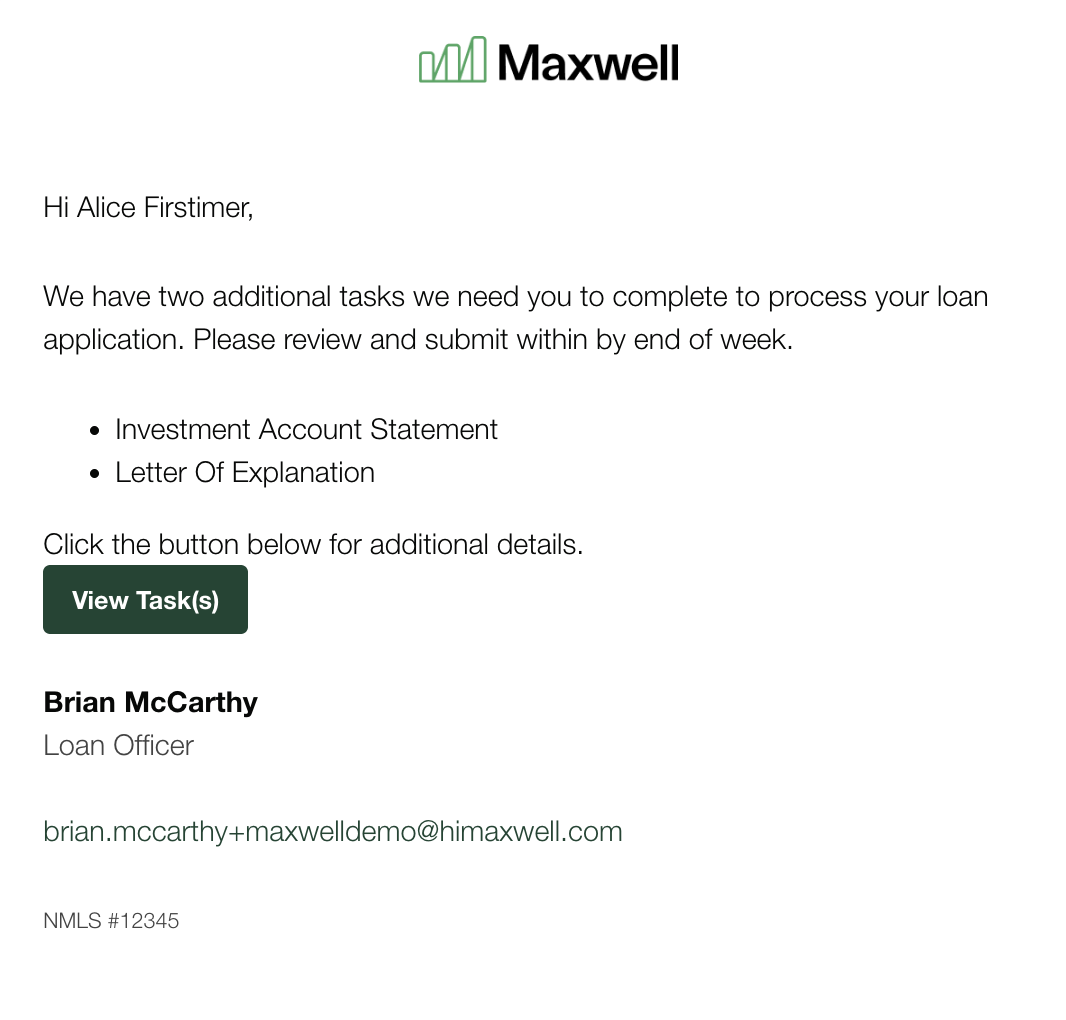
7. The borrower will receive an email summary prompting them to review and complete the tasks.
#### **Task Types**
Most follow up task types fall into one of three categories.
* **Document Gathering Tasks:** Common document requests needed for processing or underwriting, such as IDs, account statements, income documents, letters of explanation (LOEs), and tax forms.
* **Verification Tasks:** Tasks like VOE and VOA that ask borrowers to provide information or credentials so the system can complete automated verifications.
* **eSign Tasks:** Tasks that require borrowers to review and electronically sign documents, such as disclosures, hybrid e-closings, and other signable forms.
## Task Notifications & Due Dates
Borrower tasks are closely tied to email notifications and due dates. Borrowers receive email notifications when:
* New tasks are created and assigned to them
* A task is due (on the due date)
* A task is past due (up to three reminder emails)
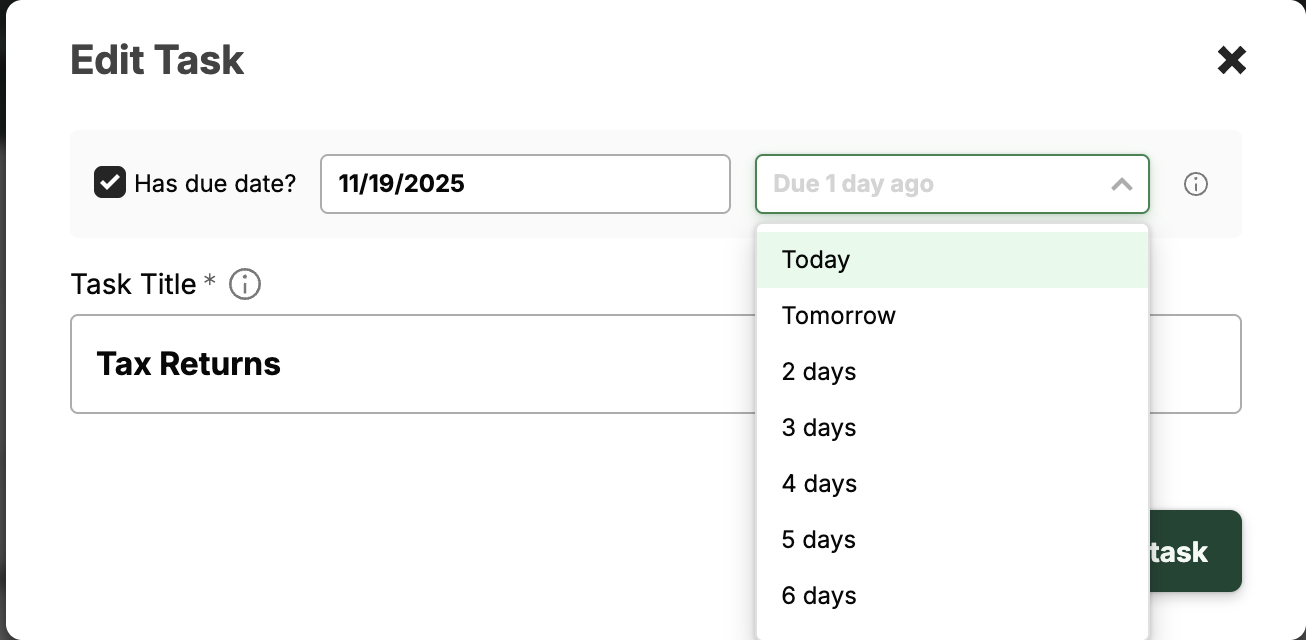
By default, a task due date is set to **3 days** after it is created. Lenders can adjust the due date during task creation or when editing an existing task.
Tasks are sorted by due date and include visual tags to highlight urgency:
* **Red tag** = past due
* **Yellow tag** = due today
* **Grey tag** = upcoming due date
* **No tag** = no due date assigned (edit the task to add one)
* **Green checkbox** = task completed
Lenders can set and edit task due dates either at task creation or by editing a task.