> For the complete documentation index, see [llms.txt](https://docs.himaxwell.com/llms.txt). Markdown versions of documentation pages are available by appending `.md` to page URLs; this page is available as [Markdown](https://docs.himaxwell.com/platform-overview/borrower-hub/borrower-document-uploads.md).
# Borrower Document Uploads
## Borrower Documents Overview
Our document upload functionality provides a secure hub where lenders can request documents and borrowers can upload them.
Once an application is submitted, the POS platform automatically prompts the borrower to upload the supporting documents needed for information provided in their application. If assets or employment are already verified, the platform can omit the related document requests, creating a smoother borrower experience. Lenders can also customize the conditions that trigger specific document requests or choose to omit certain requests entirely.
## The Borrower Experience
After the borrower submits their application, a list of follow-up document requests opens automatically, each with an assigned due date.

### Uploading & Reviewing Documents
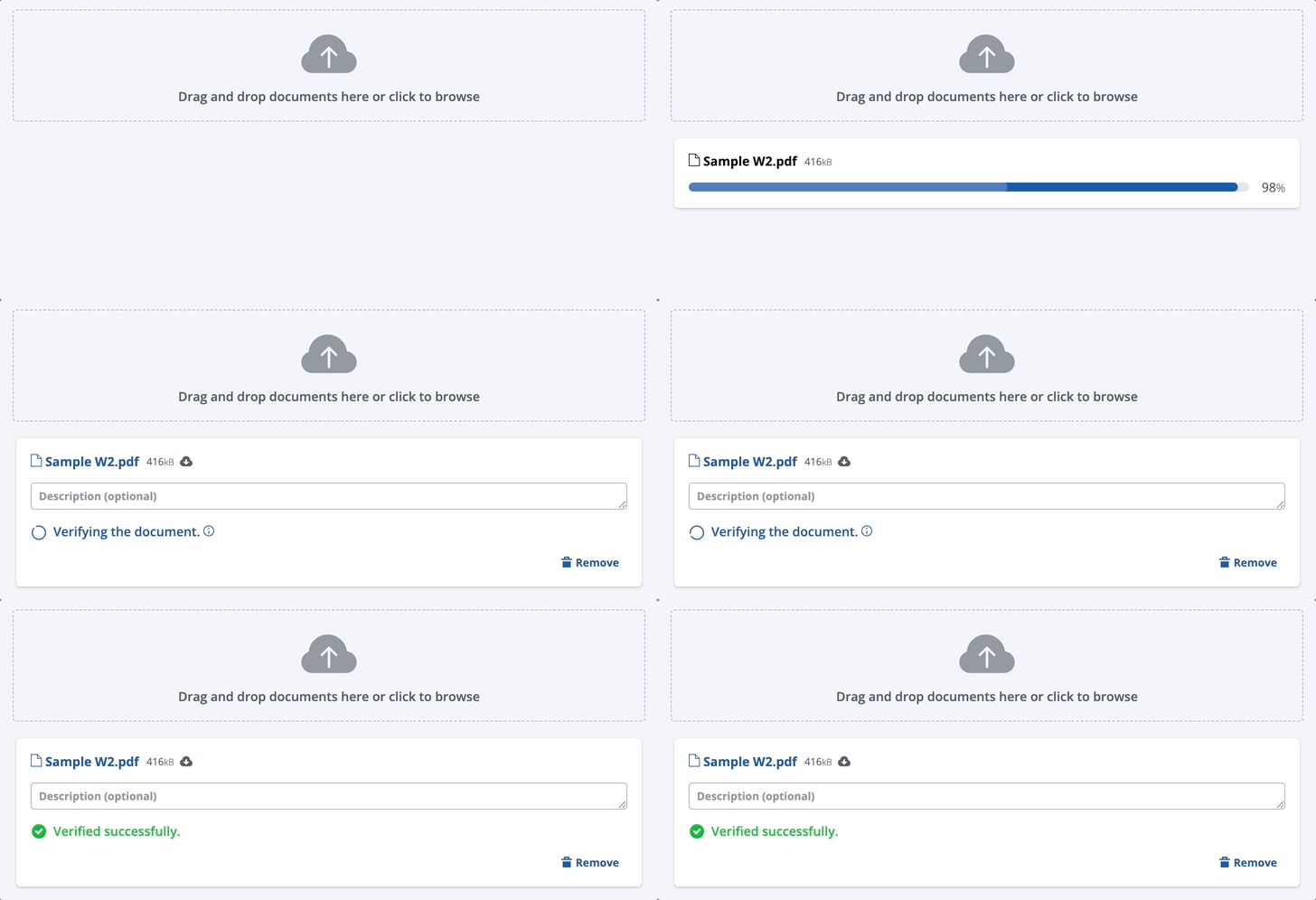
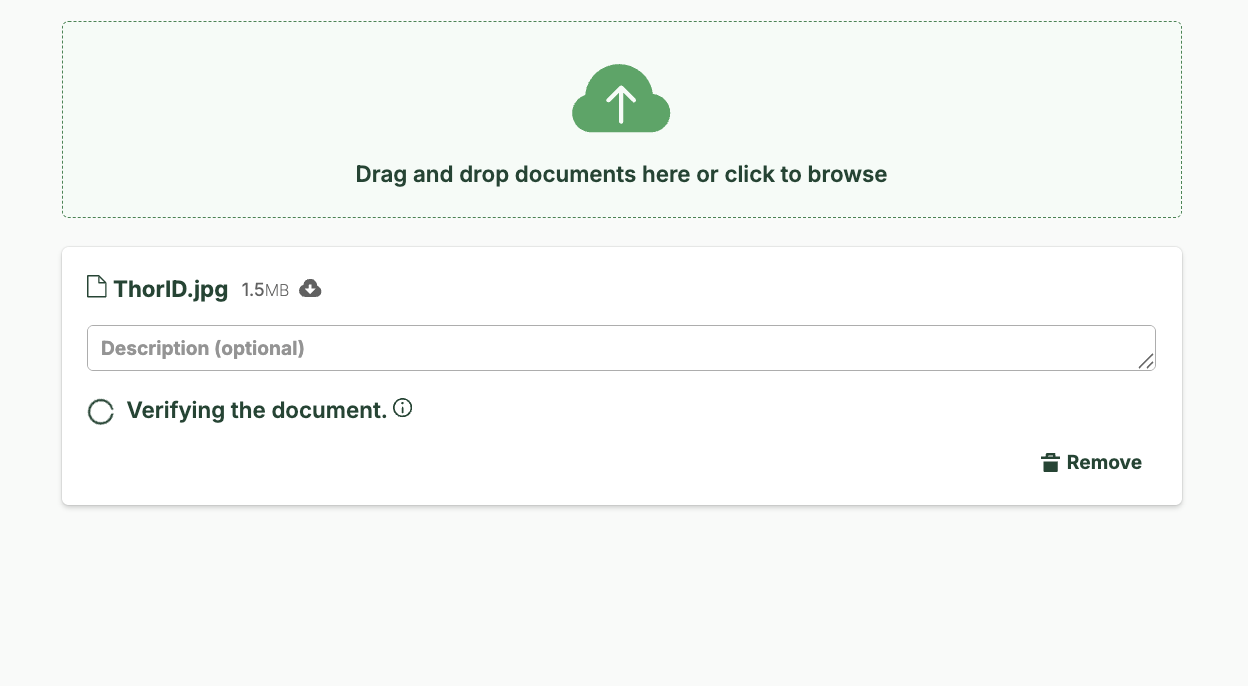
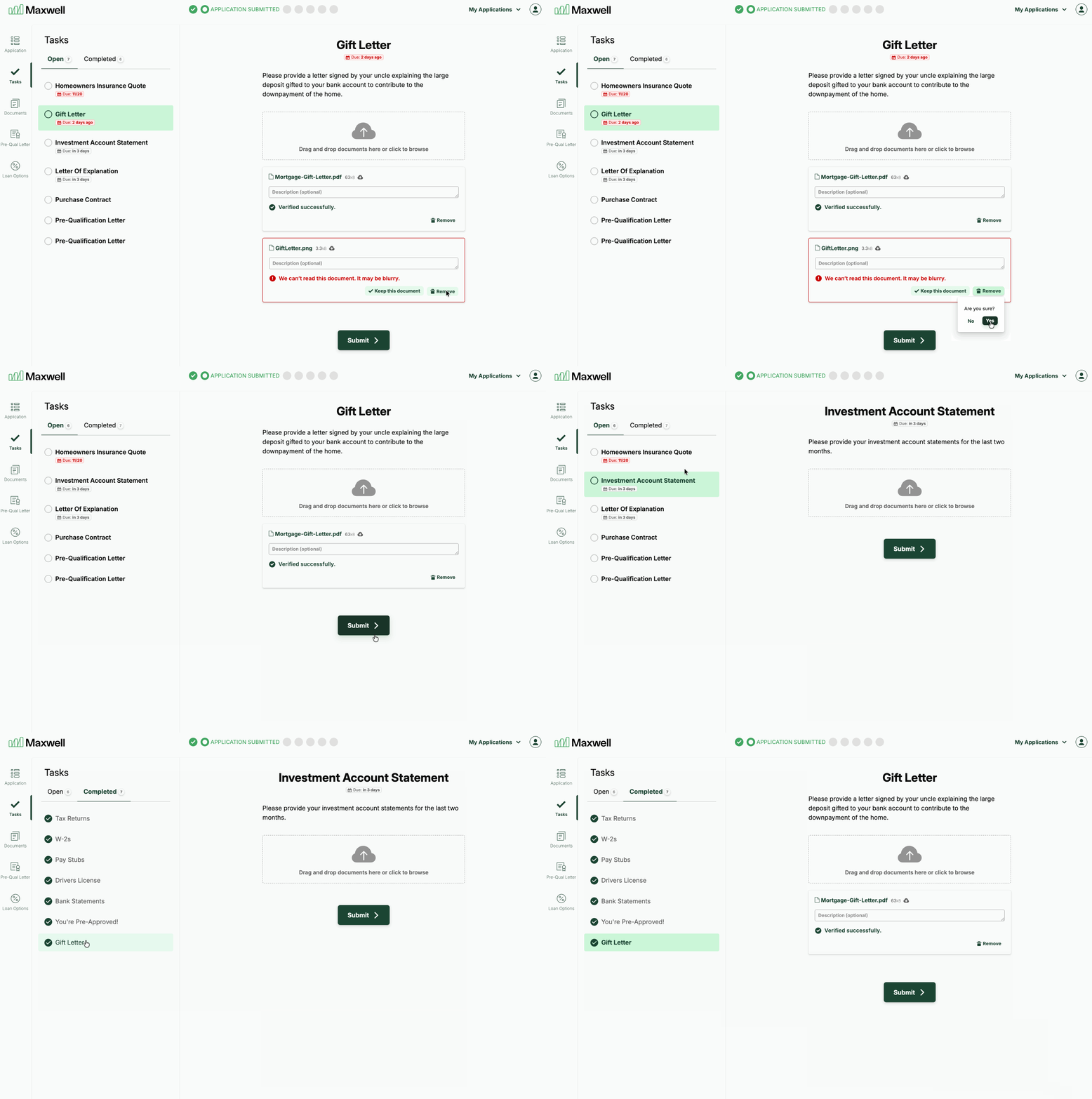
When the borrower opens a task, they can drag a file into the upload area or click within the area to open a file finder window on their device. Borrowers can also add comments or descriptions to provide additional context about the documents they are uploading.
Document Validation
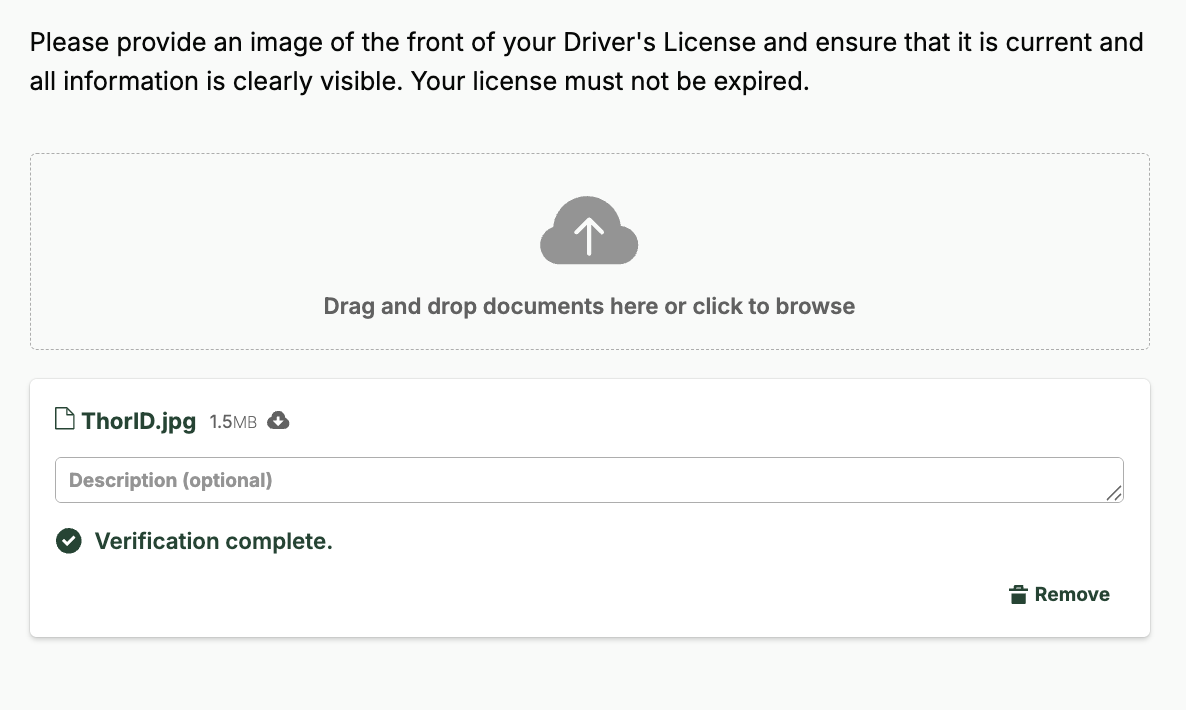
Upon upload [**Maxwell's AI Powered Document Verification** ](/platform-overview/lender-hub/borrower-tasks/ai-powered-document-validation.md)scans the document to identify if there are any issues on the document that need to be corrected by the borrower.
AI validation reviews documents for:
* **Legibility**: Whether the document is too blurry to read
* **Access**: Whether the document is password protected
* **Classification**: Whether the document type matches the task request
* **Completeness**: Whether all required pages are included
* **Splitting**: Whether the document should be separated by type or time period
Once the document completes scanning it either approves the documents or suggest the borrower take action to resolve the experience.
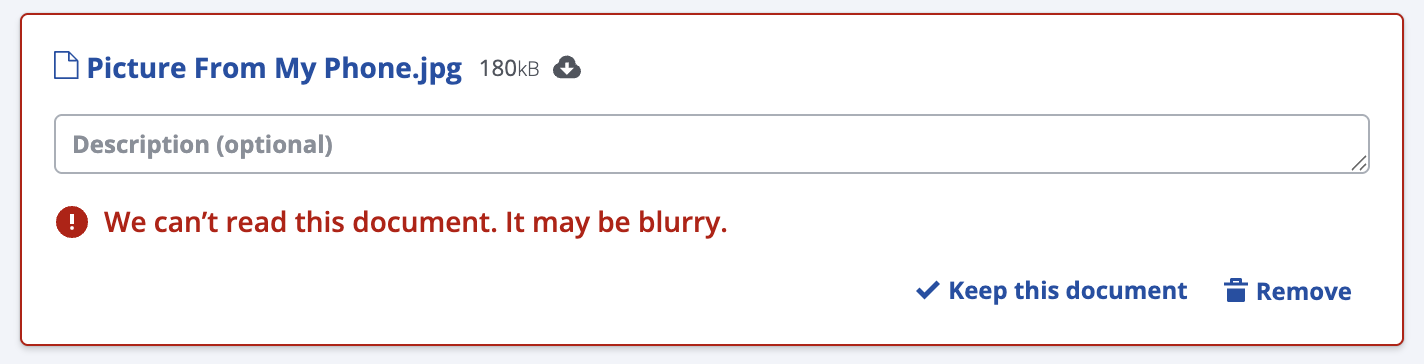
This feature helps catch situations where a borrower uploads a blurry image, which often occurs when documents are photographed with a phone. When a blurry image is detected, the user will receive the following message:
Blurry or Illegible Document Warning
Users always have the option to **“Keep this document,”** which overrides the validation. A key principle of our AI strategy is to guide users toward higher-quality documents without ever blocking them from progressing their loan.
### Task Submission
After completing upload of all documents the borrower can submit the task for lender review. This moves the tasks from open to completed.
### Document Tab Overview
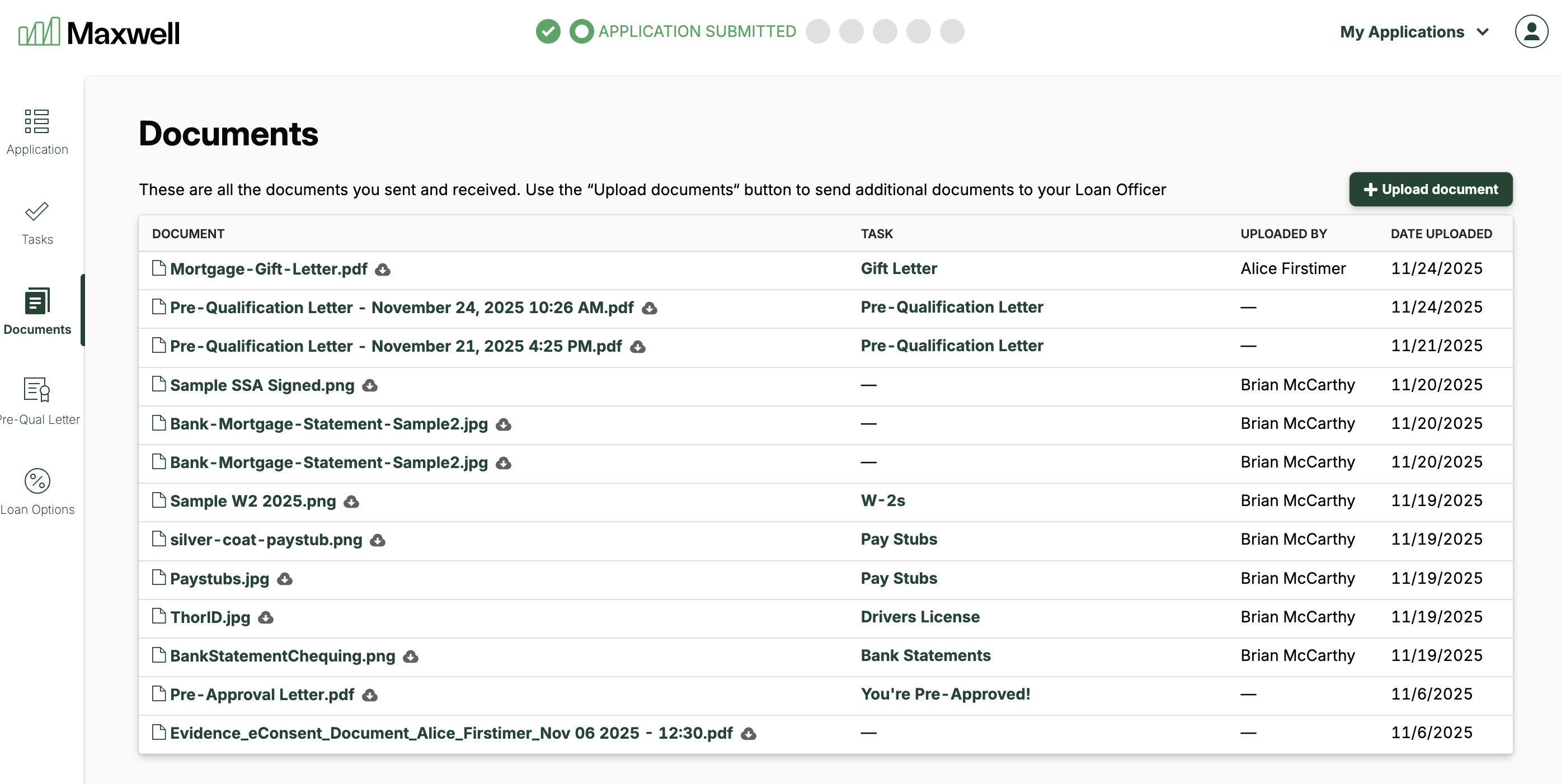
The document tab allows the borrower quickly review all docs uploaded to the loan file. Key information includes.
* Document name
* Borrower Task associated (if applicable)
* Uploaded by: Borrower, Lender team member, –– (system generated document)
* Date uploaded
* Upload a document
In addition to documents uploaded by the borrower, the table also displays documents uploaded by the loan officer as well as system generated documents such as e-consents, disclosures, and pre-qualification letters.
#### Uploading Docs
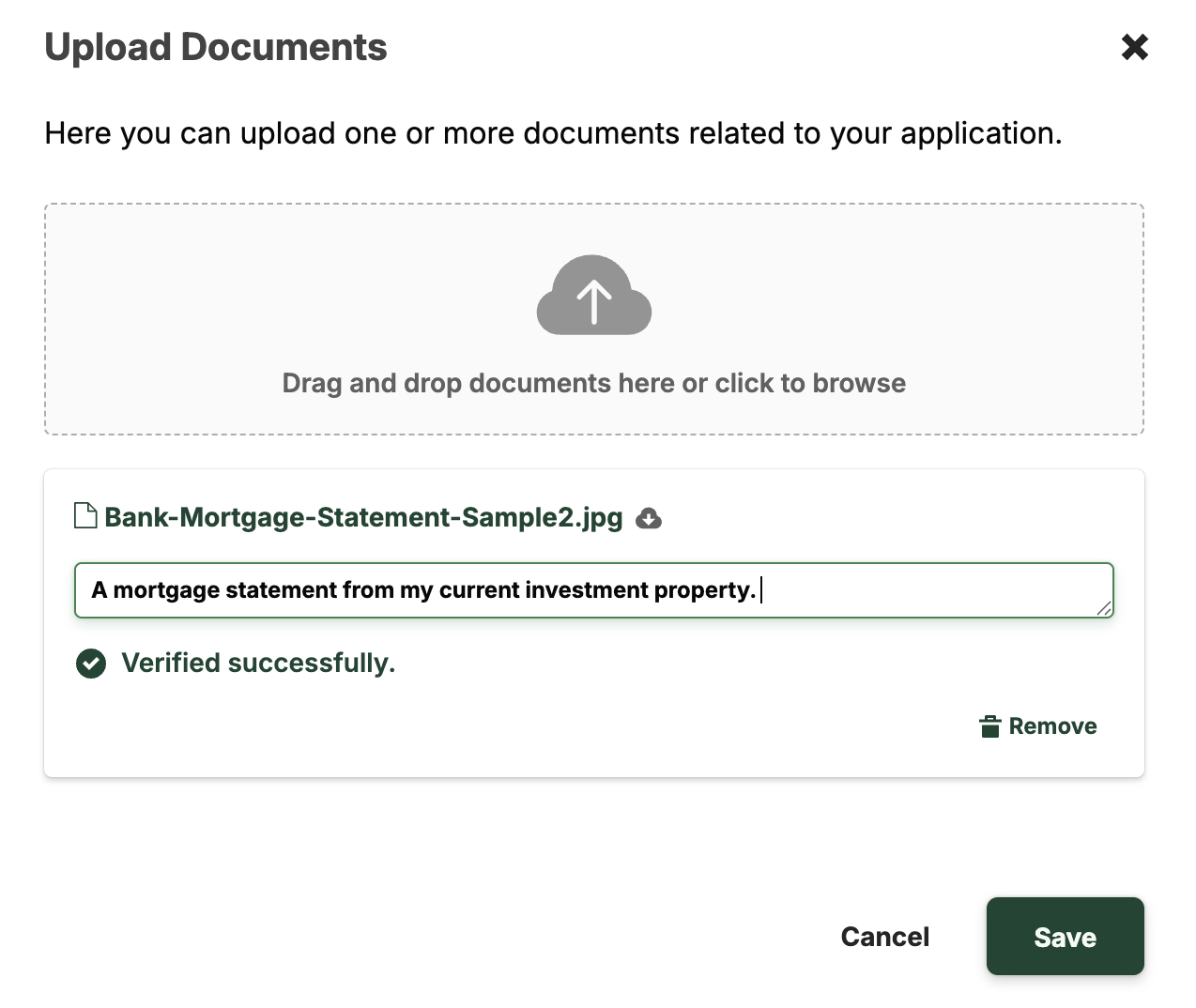
Borrowers can also upload documents even when no specific task has been assigned. To do this, the borrower selects **+ Upload document** in the upper right corner of the table. This opens a window where they can add any miscellaneous documents along with optional descriptions.
### File Size Limitations
Documents uploaded must be in the .pdf, .doc, .docx, .jpeg, .png, .xls, or .xlsx format. The maximum file size allowed is 20 mb. If a borrower attempts to upload a file that is not supported, an error message will display, as shown below.

## The Lender Experience
Go here to learn how to use the [lender experience of the documents tab](/platform-overview/lender-hub/documents.md).
From within the application in the Lender Hub, Loan officers first navigate to the "documents" tab, as highlighted below. This tab displays both lender documents and borrower documents, including credit reports, verification of asset reports, pre-qualification letters, and borrower uploaded documents.